LightBlog

jeudi 31 octobre 2019

Fingerface Xposed Module enables the Pixel 4’s Face Unlock in any app

The Google Pixel 4 may not be the first Android smartphone with secure facial recognition hardware (it’s preceded by the OPPO Find X and Huawei Mate 20 Pro), but it is the first Android device with a face unlock implementation that’s recognized secure under Android’s BiometricPrompt API. That means the Pixel 4 is the first Android smartphone that lets you use your face to not only unlock the phone but also authenticate apps or payments. However, app developers have to update their apps to use BiometricPrompt, so it’s going to take some time for every banking and password manager app to support the new Face Unlock. Since the Pixel 4 doesn’t have a fingerprint scanner, apps that use the old API will simply fall back to asking you for manual password entry. Fortunately, there’s a way around that, provided you’re willing to root your Pixel 4 with Magisk and install the Xposed Framework.

XDA Junior Member SemonCat developed an Xposed Module called “Fingerface” that proxies the old fingerprint API to instead call the new BiometricPrompt API. That means that whenever an app using the old fingerprint API requests you to scan your fingerprint, the new BiometricPrompt dialog will appear to let you scan your face instead. It’s a simple, albeit crude, workaround, but it beats having to manually type your long passwords into all of your apps.

Here’s a quick screen recording from the developer that shows an app (in this case, Magisk Manager) asking for fingerprint authentication, but instead receiving facial authentication:

In my view, this is a great demonstration of the power of the Xposed Framework. Xposed lets Modules hook into the methods of other apps to execute their own methods before, during, or in place of the original methods. That’s exactly what this Module is doing; FingerFaces always returns “true” when PackageManager checks to see if the device supports fingerprint hardware, and it also hooks into the (now deprecated) FingerprintManager API used by apps to instead call BiometricPrompt in its authenticate method. It won’t be easy to translate this hack into a Magisk Module because it’ll involve per-device and per-build modules that replace the framework, but the developer says he’s working on it.

I should note that installing this mod on the Google Pixel 4 currently isn’t easy. First of all, there’s no TWRP support for the Pixel 4 just yet, so you’ll have to manually install Magisk. That means you have to download the factory image, extract the boot image, patch the boot image using the latest Magisk Manager, and then fastboot flash the patched boot image. To install Xposed, you’ll then have to install the Riru Core Magisk Module and then EdXposed, the unofficial successor to the Xposed Framework. Instructions on how to do that can be found here. Finally, you can then install the Fingerface module.

Some might scoff at this mod over security concerns, but the Module is open source and from a quick glance, it seems to only do what it’s supposed to do. Furthermore, the existence of this mod has no implication on the security of Android 10 or the Pixel 4 itself since it requires the user to manually gain root access after unlocking the bootloader. Lastly, this mod, like most other mods on our forum, is intended to be used by those who value convenience and more features despite the added risk of having an unlocked bootloader and root access.

If you’re interested in this mod, you can download it from the Google Play Store link embedded below. It costs $0.99 if you get it from the Play Store, but since the app is open source, you can also just compile it yourself. Visit the XDA forum thread if you have any questions or feedback about this app. For any app developers that read this, Google published a blog post on implementing the Biometric API through the AndroidX Biometric Library. Update your apps so users won’t have to use this dirty hack!

Fingerface - FaceID backward compatible ($0.99, Google Play) →

The post Fingerface Xposed Module enables the Pixel 4’s Face Unlock in any app appeared first on xda-developers.


from xda-developers https://ift.tt/324CHZK
via IFTTT

Zone Launcher lets you access your apps from any screen with one swipe

Launcher is a commonly used phrase within the Android community that refers to the Home Screen and the application that lets us launch the other apps and games we have installed. Custom launchers are available in the Play Store that can replace your current launcher and offer unique features, customization options, and more. Zone Launcher from XDA Junior Member BialyApps, is a bit different in that it is there to supplement your current Home Screen solution and give you an additional way to quickly launch certain applications.

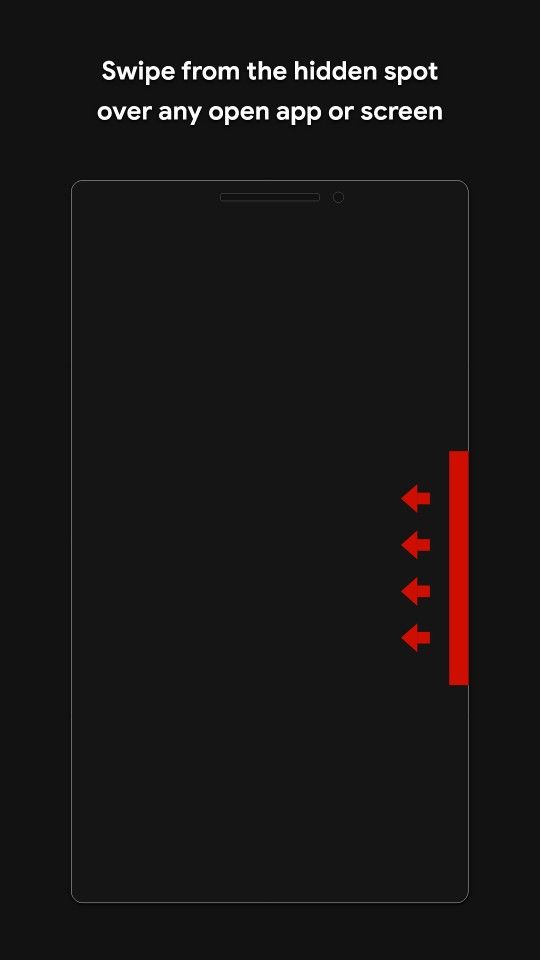
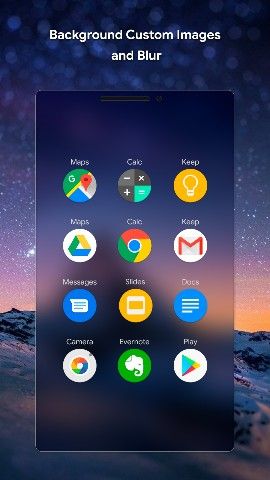
Right off the bat, we can see how this works with Zone Launcher. The typical way to open an application is to exit your current one and find it from the Home Screen or the Application Drawer. Zone Launcher works like Pie Controls or Samsung Edge and gives you quick access to applications and games from any application and any screen within Android. The developer describes the user experience as a “one swipe launcher” as you can bring up the UI with a swipe in from the side and then slide your finger/thumb over to an icon.

Once you lift your finger or thumb up from the screen after this gesture it will launch the application of the icon you were launch touching. There’s a lot more here though, including. . .

  • Single swipe gesture for all app interactions.
  • Launch any app from a customized hidden spot.
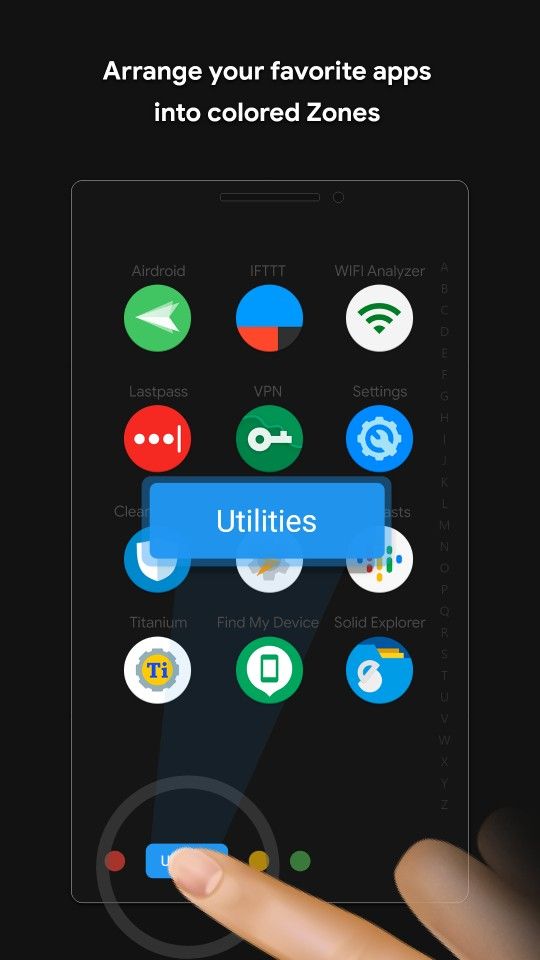
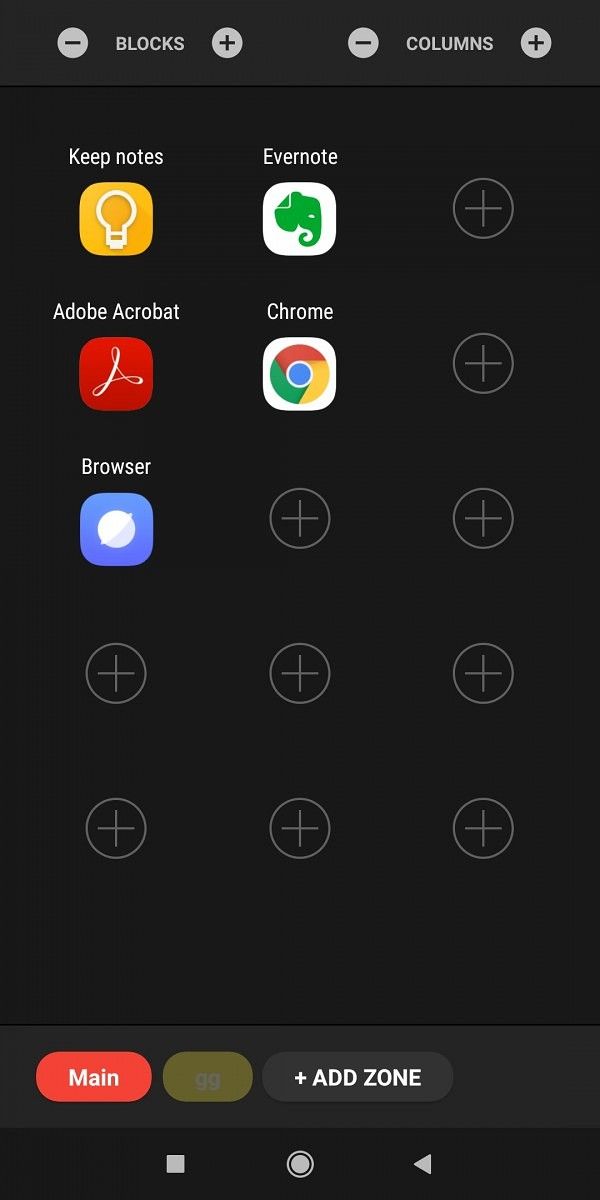
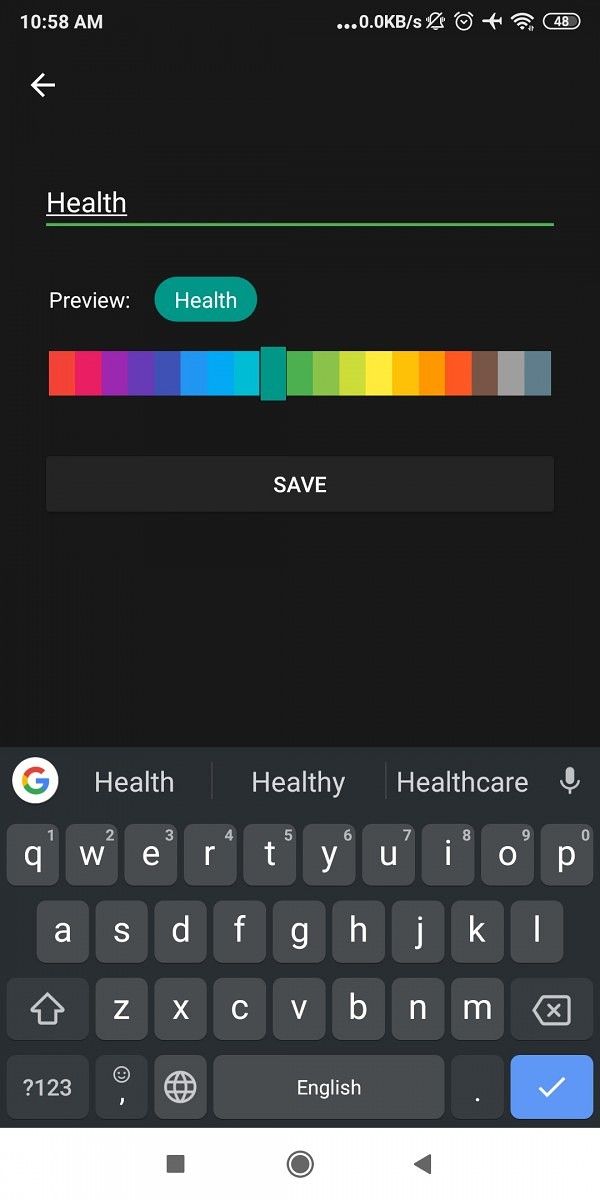
  • Arrange your favorite apps and shortcuts into different colored Zones.
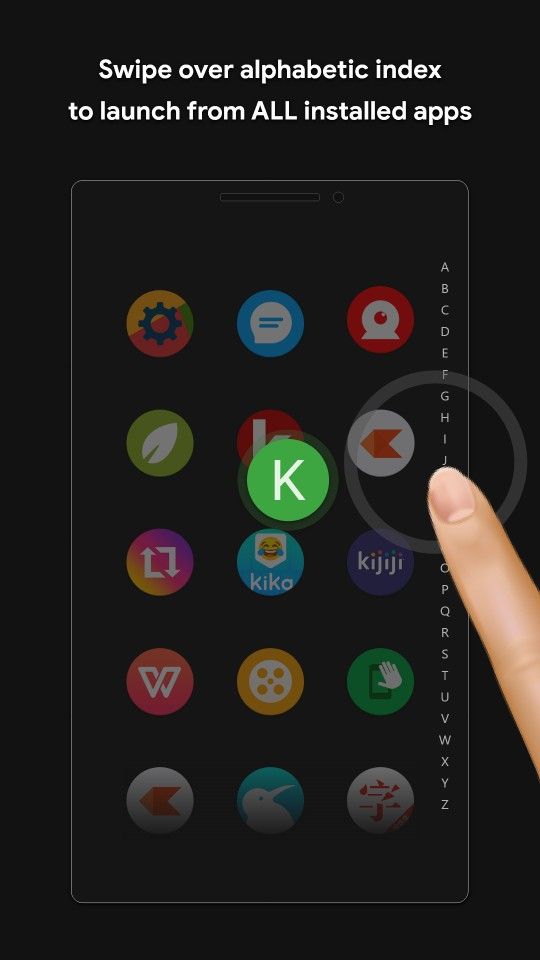
  • Launch any of the installed apps (not only favorites) using a custom alphabetical index with the same single swipe gesture.
  • Supports launching apps, shortcuts or action buttons (as WIFI, Torch, Split screen … etc).
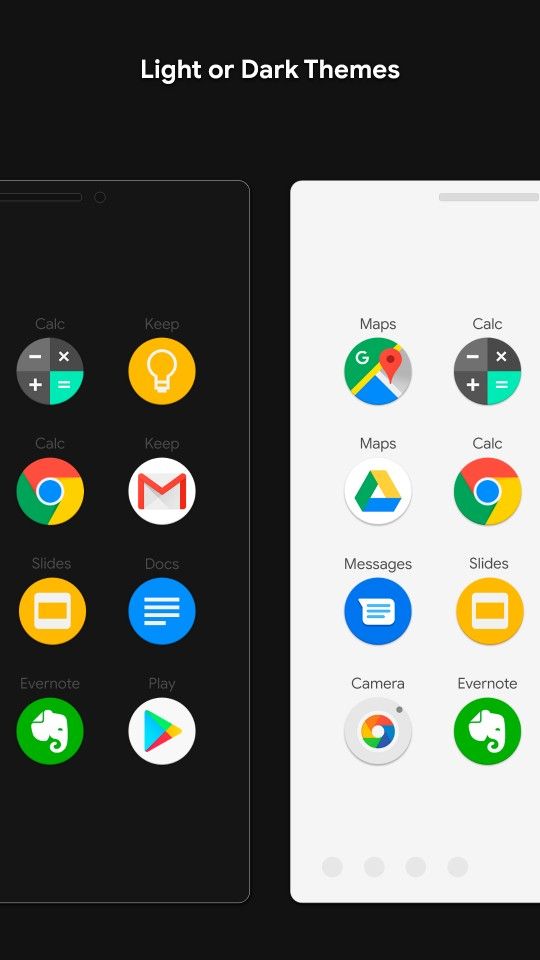
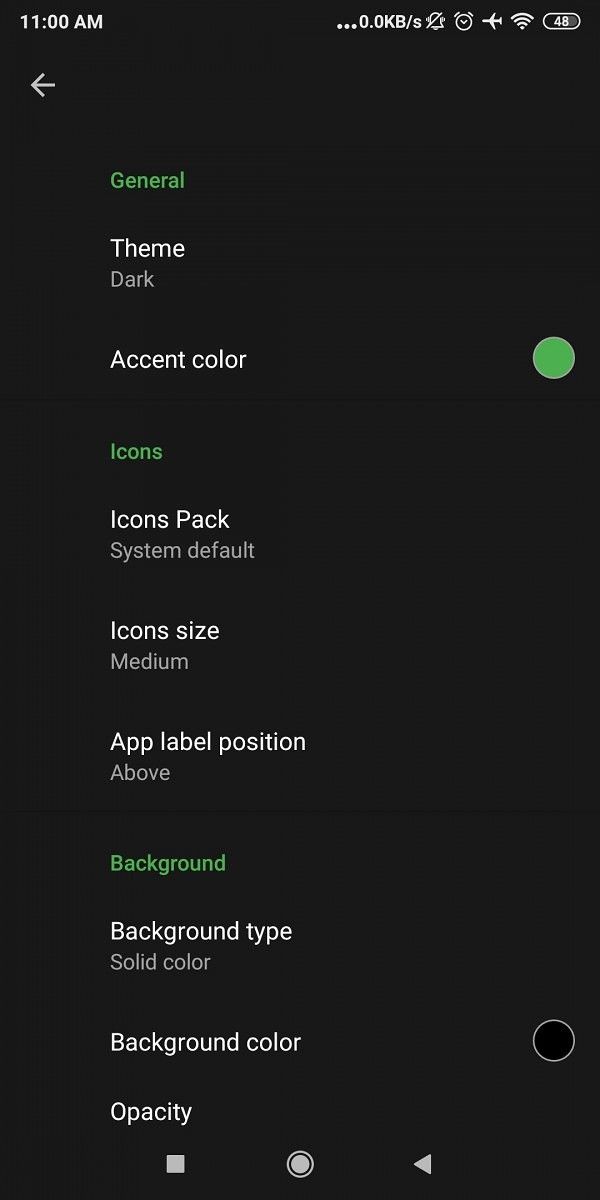
  • Customize every single aspect of the app from colors, backgrounds & icons.
  • Supports icons packs.
  • Background blurring and opacity change effects.
  • Easy to learn and use.
  • Small memory usage.

. . .and, even more, features in the works for an upcoming update. . .

  • Add a context menu option.
  • Add more action buttons.
  • Maybe consider an option for displaying widgets.
  • Fix some bugs and performance-related issues.

Zone Launcher - One Swipe Edge Launcher & Drawer (Free+, Google Play) →


Check out Zone Launcher in our Apps and Games forum

The post Zone Launcher lets you access your apps from any screen with one swipe appeared first on xda-developers.


from xda-developers https://ift.tt/2C3WQEI
via IFTTT

Make Android 10’s Hidden Desktop Mode more useful on the OnePlus 7/7T and Essential Phone

One of the most talked-about features prior to the release of Android 10 was desktop mode. When we first heard that Google’s next major Android OS would natively support desktop mode, we were hoping it would be something akin to Samsung DeX or Huawei Easy Projection. Sadly, it was anything but. Google built a barebones launcher for external displays so developers can test what their apps might look like on large displays, but they didn’t even bother adding display out support on the Pixel 4. Sadly, this means that Android 10’s hidden desktop mode is unusable on the latest Pixel smartphone, but if you have the Essential Phone, OnePlus 7/7 Pro, OnePlus 7T/7T Pro, or any other phone with video output over USB-C, then there’s a way to make it more useful.

First, here are some requirements that you have to meet:

Requirements:

  1. Your Android smartphone must be running Android 10.
  2. Your Android smartphone needs to support DisplayPort Alt Mode. Here’s a partial list of phones with support. If you have a smartphone with the Qualcomm Snapdragon 835, Qualcomm Snapdragon 845, or Qualcomm Snapdragon 855 and a USB 3.1 Type-C port, then your smartphone should support DisplayPort Alt Mode unless the phone vendor deliberately disabled it. Google disabled it on the Pixel 4, for example.
  3. You need a USB 3.1 Type-C to HDMI adapter. I bought this one off of Amazon. You’ll also need a Bluetooth mouse and keyboard if you want a more pleasant experience.

Next, here’s how to set it up:

  1. Enable Developer Options on your phone. Go to Settings > About phone and tap on “build number” 7 times.
  2. Go to Settings > Developer options and scroll down until you reach the “APPS” section. Turn on “enable freeform windows” and “force desktop mode.”
  3. Reboot your phone.
  4. Install this APK. It’s a customized version of the popular Lawnchair launcher with TaskBar integrated into it. This APK was made by XDA Senior Member farmerbb as a proof-of-concept to show custom launcher developers how they can add desktop mode support*.
  5. Go to Settings > Apps & notifications > Default apps and set Lawnchair as the default launcher.
  6. Plug your phone into your monitor/TV using the adapter.
  7. In a few seconds, you should see the custom Android 10 desktop interface appear on the screen. You’ll have to grant TaskBar permission to “display over other apps” as requested in order to show the bottom bar. If you also want TaskBar to show your recent apps in the bottom bar, you should also grant it the “usage access” permission as requested.

I would wager that everything looks way too big on your monitor/TV right now. That’s because the default DPI for desktop mode in Android 10 is 320, which makes everything look huge. Also, the navigation bar/Android 10 gestural navigation pill probably looks unsightly on your display. There’s a way to fix this, but it requires a one-time trick that isn’t user-friendly to do.

  1. Disconnect your phone from your monitor/TV and connect it to your PC.
  2. Download and install ADB on your PC.
  3. Follow these instructions to enable wireless ADB.
  4. Once you have ADB access wirelessly, it’s time to re-connect your phone to your monitor/TV.
  5. On your PC, run the following ADB shell command:
    adb shell dumpsys display
  6. In your terminal/command prompt window, you should see a huge wall of text. Scroll up until you see the part of the output that lists the “Logical Displays.” This will list the display information for all currently detected displays, including the built-in one on your phone as well as the externally connected one. For example, “Display 0” is the built-in display on my OnePlus 7 Pro while “Display 3” is the Vizio TV that I connected the OnePlus 7 Pro to. You’ll want the display ID value for your external display, which in my case is ‘3’. Note that this value can change when you re-connect your smartphone to a particular monitor/TV, but any display UI changes we’re going to make in the next step(s) will be remembered!
  7. On your PC, you’ll want to run the following ADB shell commands:
    adb shell wm density [DENSITY] -d [ID]
    adb shell wm overscan 0,0,0,[OVERSCAN] -d [ID]
    adb shell wm size [RESOLUTION] -d [ID]

    where [DENSITY] is a positive integer value, [OVERSCAN] is a negative integer value, [RESOLUTION] is the display resolution in widthxheight format, and [ID] is the display ID for your external monitor/TV. For example, I used the following commands to achieve the UI seen above:

    adb shell wm density 120 -d 3
    adb shell wm overscan 0,0,0,-125 -d 3
    adb shell wm size 1920x1080 -d 3
  8. We’re using the WindowManagerShellCommand to tweak the density to make UI elements appear smaller, overscan to hide the navigation bar, and/or resolution to match that of the external display. Play around with these values until you get something you’re comfortable with.

That’s it! Enjoy desktop mode on your Android 10 smartphone. We’re not sure why Google disabled DisplayPort Alt Mode functionality on the Pixel 4, so we reached out for comment and will update you if we hear back.


If you’re a custom launcher developer interested in integrating TaskBar into your launcher, you can find the instructions here.

The post Make Android 10’s Hidden Desktop Mode more useful on the OnePlus 7/7T and Essential Phone appeared first on xda-developers.


from xda-developers https://ift.tt/326QK14
via IFTTT

Everything announced at Samsung Developer Conference 2019

For the past few years, Samsung has been hosting its Samsung Developer Conference in the Fall. This is the time for the company to announce all the software, and sometimes hardware, that it’s pushing for developers to work with. Last year was all about One UI and Bixby. This year was all about Bixby Capsules, foldables, and One UI 2.0.

One UI 2.0

Samsung considers One UI 1.0 to have been a huge success. They claim customer loyalty has increased over 15% for the Galaxy S10 series, which Patrick Moorhead of Moor Insights & Strategy thinks is because of One UI. With One UI being such a success, Samsung wanted to focus more on One UI 2.0. One UI 2.0 is all about natural interactions and visible comfort, along with helping you focus more on the content on your display. Samsung is, again, doing this by shifting their “focus” block towards the bottom of the display while keeping the “viewing area” at the top. They are essentially refining their UI to make usability and ease of use better. Samsung is also making One UI feel more alive by animating some system icons just to add a little personality to the UI.

Samsung Blockchain SDK

At SDC, Samsung also announced its new Blockchain SDK. This allows developers to easily integrate with Samsung’s hardware wallet built into their newest devices. Using the SDK, developers can create apps that create or access blockchain accounts on the device. The SDK also allows for developers to accept cryptocurrencies like Etherium as a form of payment in the apps. This is a very simple description of what Samsung has opened up with its new Blockchain SDK. I highly recommend reading more about the Blockchain SDK on Samsung’s developer website.

Samsung SmartThings Rules API

SmartThings is Samsung’s IoT platform used for smart security cameras, refrigerators, washing machines, TVs, and more. At SDC, Samsung announced the new Rules API. This allows for developers to set up complete automations using the Samsung SmartThings Cloud. According to Samsung this “[means] that the number of services and products available to users with automation built into their capabilities is set to expand.” There isn’t much information on this new Rules API besides the fact it can run even if the internet goes out. Samsung will likely announce more information about the new Rules API and SmartThings updates soon.

Bixby

While this isn’t one of the major announcements of SDC, Samsung has a new capsule in Bixby to show off the power of Bixby. It is called Bixby Home Advisor. It allows you to ask Bixby for help with any problems you might have in your home. You can ask for a plumber, for example. Bixby will then come up with a list of issues or appliances you might need help with, find the closest and highest rated professional, and let you request a quote. All off this happens very quickly and all through Bixby using Bixby Capsules. Bixby Capsules are available for any developer to make for any Samsung device with Bixby.

Another minor change is to Bixby Home on the default One UI Home launcher. Samsung will be replacing Bixby Home with a new page called Samsung Daily. It is essentially the same thing but it has a new icon and slightly different design. This will likely be rolling out with One UI 2.0 or One UI 2.1 on the Galaxy S11 rumored to launch in February.

Image from our friends at SamMobile

Samsung Galaxy Book Ion and Galaxy Book Flex

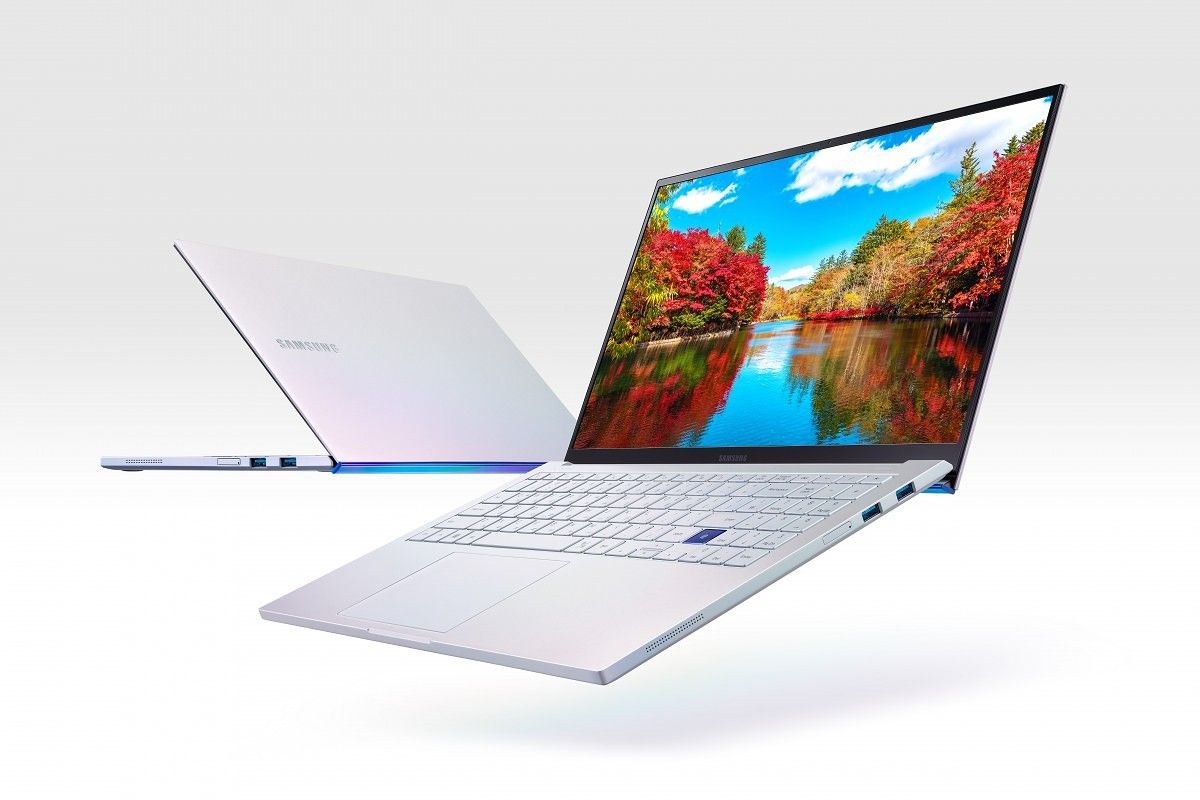
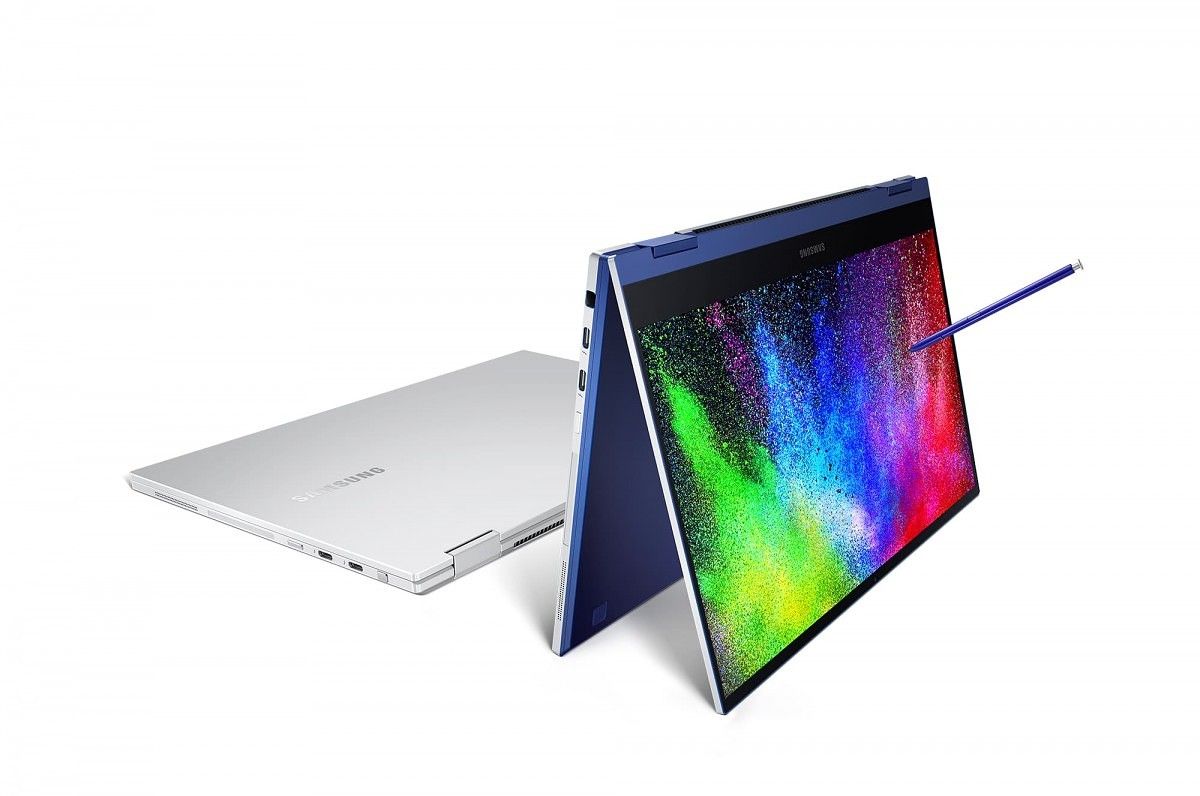
While SDC is mostly about Samsung’s software, there is still some hardware to show off. Samsung announced two new laptops: Samsung Galaxy Book Ion and Galaxy Book Flex. These new laptops are both powered by the latest 10th generation Intel Ice Lake and Comet Lake processors. Both laptops come with Samsung QLED displays at 1080p. These are the same type of great displays you can find on Samsung’s TVs. They come with a new outdoors mode which allows for the display to get to a very bright 600 nits, almost 200 nits brighter than the latest MacBook Pro and Surface Book 2. They are both very thin with the Galaxy Book Flex and Ion coming in at 13mm to 15mm. The Galaxy Book Flex is pretty light coming in at a minimum of 1.15kg (2.5lbs) and a maximum of 1.57kg (3.5lbs) while the Galaxy Book Ion comes in at a minimum of 0.97kg (2.13lbs) and a maximum of 1.15kg (2.78lbs.)

Something new Samsung did with the Galaxy Book Flex and Galaxy Book Ion is incorporate Wireless PowerShare into the trackpad. Essentially, the trackpad can wirelessly charge your phone, earbuds, or watch. The Galaxy Book Flex comes with an S Pen as well. This is the same S Pen that comes with the Galaxy Note 10, so it has all the same Air Actions. These laptops are scheduled to launch in early 2020. Samsung has yet to announce any prices for these laptops.

Galaxy Fold 2 Teaser

Just like last year, Samsung has teased the new Galaxy Fold 2, codenamed “bloom,” at SDC. This year they showed a 24 second video with the display folding shut. It is a clamshell design with a centered hole punch. This is very likely to launch in early 2020 with a 6.7-inch display that folds into a square, as Bloomberg reported last month. The model number is rumored to be SM-F700F and come with 256GBs of storage. Software development on this device started earlier this month. We have an entire article about this new tease, so if you want to know a little more about that, I recommend checking it out.

Galaxy Home Mini

At SDC, Samsung showed off the Galaxy Home Mini. This is their smaller Bixby speaker. We don’t know much about this speaker beside the fact it exists and Samsung is showing it off. Samsung has also started a beta program in South Korea, seeding these devices to users to test them out in their homes. There is also the larger Galaxy Home, but Samsung hasn’t updated us on any new information about that device in nearly 14 months.

Samsung announced a lot of new products and software at SDC 2019. As a developer website and forum, we love to see everything Samsung is announcing at their developer conference. It’s great to see companies open up development on their platform to more and more people.

The post Everything announced at Samsung Developer Conference 2019 appeared first on xda-developers.


from xda-developers https://ift.tt/337zv0Q
via IFTTT

WhatsApp for Android now supports fingerprint unlock

WhatsApp is the most popular messaging platform on the planet, which means people are using it for all sorts of purposes. In August, WhatsApp started working on a feature for people who wish to put the app behind an extra layer of security. Now, Fingerprint Unlock is ready for primetime and available in the latest stable build.

Fingerprint Unlock was first introduced in beta build version 2.19.221. The feature allows WhatsApp to require a fingerprint before it can be opened. It uses the same fingerprint that you use to unlock your phone. So if someone is able to get into your phone through other methods, at least they won’t be able to open the app and go through your private conversations.

whatsapp fingerprint unlock

The feature comes with a number of options as well. You can set WhatsApp to automatically lock immediately upon closing, after 1 minute, or after 30 minutes. This is handy if you don’t want to be scanning your fingerprint every single time you open the app. There is also the option to still content to be displayed in notifications if you don’t need to totally lock down the app. To set it up, got to Settings > Account > Privacy > Fingerprint lock.

WhatsApp Messenger (Free, Google Play) →


Source: WhatsApp

The post WhatsApp for Android now supports fingerprint unlock appeared first on xda-developers.


from xda-developers https://ift.tt/2qcS1pW
via IFTTT

Google is testing a completely revamped Assistant Feed

Google has offered its users a number of ways to interact with its virtual assistant. Some prefer to use the voice command hot words to bring it up while others will launch the service from the navigation bar/gesture. However, few seem to access it using the Google application. There’s an Updates tab in the Google application that brings up what some would describe as the Google Assistant hub or feed. As of right now, this UI gives you quick access to certain commonly used features of the assistant but someone on Twitter seems to have received a revamped design that may be in testing.

So here we have the two screenshots that Twitter user Eduardo Pratti uploaded late last night. There isn’t any mention of an application update so what we’re likely seeing here is an A/B server-side test that Google is currently working on. The current UI of the Updates tab in the Google application has a lot of focus on offering you suggested actions within each section of cards. However, this redesign that we’re seeing has cleaned up the interface a lot and highlights the actual content rather than suggested actions.

In the reply to his own tweet, Eduardo then uploaded a video showing how these cards are animated with this new redesign. You’ll notice that these cards shown in the new Google Assistant updates feed have an arrow down icon on the right side. This is similar to what we have now which will either give you more context for the card or even giving you some suggested actions specific to that card.

This is quite a big change for the Assistant Feed within the Google application. I’m personally not a heavy user of this tab in the first place but I do like how the new UI has cleaned things up. This looks to be a very small A/B test that may never make it out to more people than those who have it right now. But we’d like to hear what you think of the user interface in testing.


Via: 9to5 Google

The post Google is testing a completely revamped Assistant Feed appeared first on xda-developers.


from xda-developers https://ift.tt/2qYBIgZ
via IFTTT

The Nokia 7.2 could be the first HMD Global phone to ship with an unlockable bootloader

If there’s one thing that hasn’t sit well with our users regarding Nokia/HMD Global devices, is how developer-unfriendly these phones are. After all, these phones are not bootloader unlockable. Without bootloader unlock, most mods, including rooting and custom ROMs, become simply impossible to achieve, closing a lot of doors for power users interested in modding their devices. Nokia’s constant reluctance to allow bootloader unlocking, as well as broken promises to allow it in the past, has not helped its cause either, but the Finnish company may be looking into reversing course in this stance. The Nokia 7.2 was recently launched as one of HMD Global’s most competent midrange devices, but it’s also apparently the first phone to ship with an unlockable bootloader.

Indeed, the device’s bootloader can be unlocked very straightforwardly without going through any weird hoops and workarounds by enabling OEM unlocking in developer settings and unlocking it through fastboot just like you would unlock any other phone out there. Once the bootloader is unlocked, users are free to do whatever they want with their phones, including, but not limited to, installing a custom recovery like TWRP, rooting, and flashing custom ROMs (either in the form of GSIs or device-specific ROMs). Previously, Nokia users were mostly out of luck when it came to unlocking their phones’ bootloaders, and as such, were forced to remain completely stock.

Have in mind, however, that there is a possibility that this is just a massive accident or mistake on HMD Global’s part, and that they didn’t mean to ship the phone with an unlockable bootloader. This is something that can be easily fixed with a software update if they wanted to. As such, if you bought a Nokia 7.2 and you want to mod it, then go ahead and unlock your phone as soon as possible, and avoid taking any over-the-air updates until HMD Global actually speaks out on this.

How to unlock the Nokia 7.2 bootloader


Source: Techmesto

The post The Nokia 7.2 could be the first HMD Global phone to ship with an unlockable bootloader appeared first on xda-developers.


from xda-developers https://ift.tt/333ZCFZ
via IFTTT