LightBlog

jeudi 20 février 2020

“Search Chips” help refine searches in Gmail for G Suite users

Gmail is a nearly ubiquitous method for communication, which is a good and bad thing. You can contact pretty much anyone if you have their email address, but that also means anyone can contact you if they have your address. This can lead to an inbox full of thousands of emails, which is why search is so important. Gmail for G Suite users is getting more powerful search thanks to “Search Chips.”

Previously, you could narrow down a Gmail search by typing in filters like “label:work” or “from:email@address.com.” To narrow things down even further you could combine these filters. However, it’s not super convenient to type these in and a lot of people don’t know how to use them. “Search Chips” are intended to make these filters easier to use.

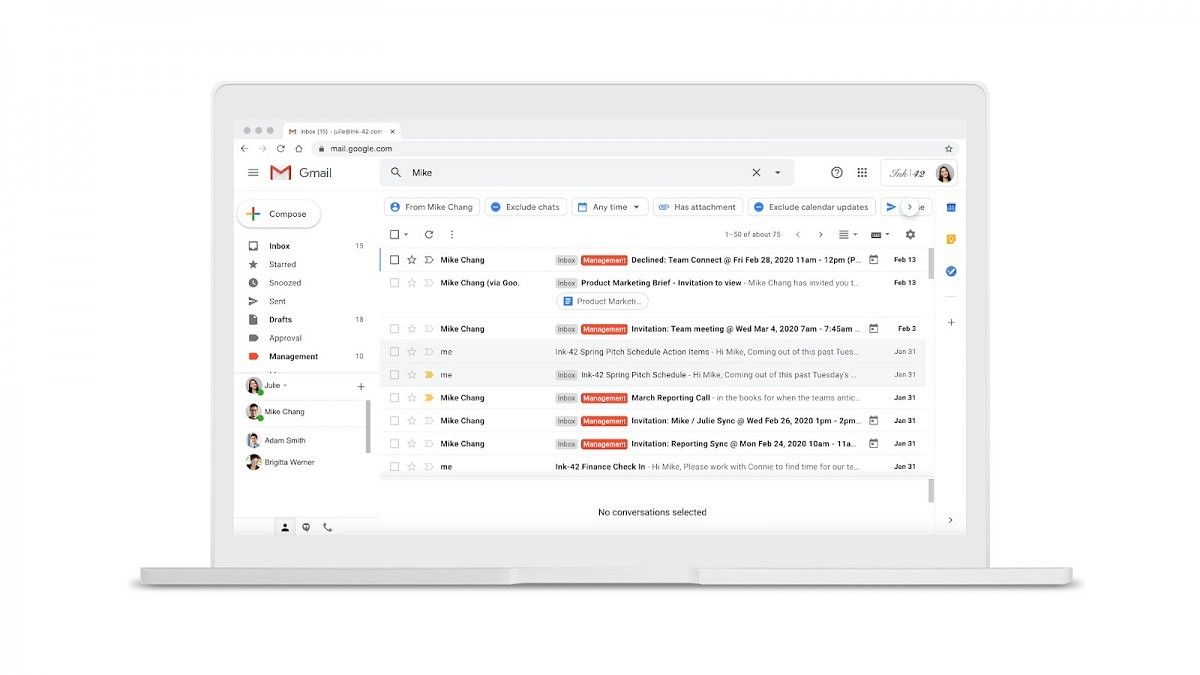
gmail search chips

Search Chips appear underneath the search box in Gmail as clickable suggestions. In the example above you can see the user started typing “Mike” in the search bar. Search Chips for “From Mike Chang” and “Exclude chats” start appearing. You can click these suggestions to narrow down your search. It’s sort of like Smart Reply, but for search.

The update with Search Chips has already started rolling out to Gmail for G Suite users, but it may take up to 15 days to arrive for everyone. Google plans to bring this feature to regular Gmail users sometime after the G Suite rollout.


Source: Google

The post “Search Chips” help refine searches in Gmail for G Suite users appeared first on xda-developers.


from xda-developers https://ift.tt/39RK8bb
via IFTTT

[Update: Registration Open] Google I/O 2020 will take place from May 12-14

Update (2/20/20 @ 4:30 PM ET): Google has opened ticket applications for Google I/O 2020.

Google is known for using cryptic puzzles as a way to announce the date of its annual Google I/O developer conference. Back in 2017, the search giant published an online brain teaser containing the dates of Google I/O 2017. The next year, the company shared a puzzle through the Google Developers Twitter account, which redirected users to the Google I/O 2018 website that had been turned into an escape room-style Google Maps Street View experience in a Google campus building. Last year, the company released another cryptic message to announce the dates for Google I/O 2019 and for 2020 they had the “A Collaboration of the Cosmos” puzzle. Once solved, Sundar Pichai, took to Twitter to announce the dates for Google I/O 2020.

Pichai, who was appointed as the CEO of both Alphabet and Google towards the end of last year, shared a short GIF on the micro-blogging platform along with the dates for Google I/O 2020. As per his tweet, Google I/O will be held at the Shoreline Amphitheatre in Mountain View, California from May 12-14. At this year’s I/O developer conference, we expect Google to showcase the next major Android release — Android 11. Much like last year, the company is also expected to share new features and updates for its vast portfolio of apps. The company might also release new hardware, including an update for the Pixel 3a series which was showcased at the event last year.


Update: Registration Open

Registration is now open for Google I/O 2020. Prices remain the same as previous years: general admission is $1,150, while academic pricing is $375. To qualify for the deeply discounted student ticket, you will be required to prove you are an active full-time student, professor, faculty, or staff member at a high school or college.

The ticket application window will be open from today until February 25th at 5 PM PT. It does not matter when you submit your application as Google will “randomly select applicants from among all of the qualified applications and notify those selected via email on February 28th.” Good luck!

The post [Update: Registration Open] Google I/O 2020 will take place from May 12-14 appeared first on xda-developers.


from xda-developers https://ift.tt/2TRIyBu
via IFTTT

Google may turn Android 11’s Power Menu into a Control Center for favorite shortcuts

When Google released Android 11 Developer Preview 1 yesterday, we found mostly surface-level changes in our initial hands-on. It seems that Google will once again leave the bulk of the user interface changes and new features for a public beta after an announcement at Google I/O 2020. However, we discovered several in-development user interface tweaks that suggest big changes are coming for the Android OS in 2020. We discovered that Google may put a media player in the Quick Settings panel, separate the notification shade from the Quick Settings panel, and now, we’ve found that Google may be tweaking the power menu to accommodate user-selected shortcuts.

On my Pixel 2 XL running Android 11 DP1, I managed to activate a new UI for the long-press power menu, as shown below. The existing power menu icons, including Emergency, Screenshot, Restart, and Power off, shift to the top of the screen, leaving a lot of empty space underneath. In addition, a new “Home” text appears above the icons. The icons shifting upward suggests that Google plans on adding something to fill up the empty space, which we initially assumed was in preparation for the new Quick Access Wallet feature that’s now in Android 11. However, the presence of the “Home” text raises the question of why it’s there—could Google be in the process of creating categories in the power menu for different kinds of actions?

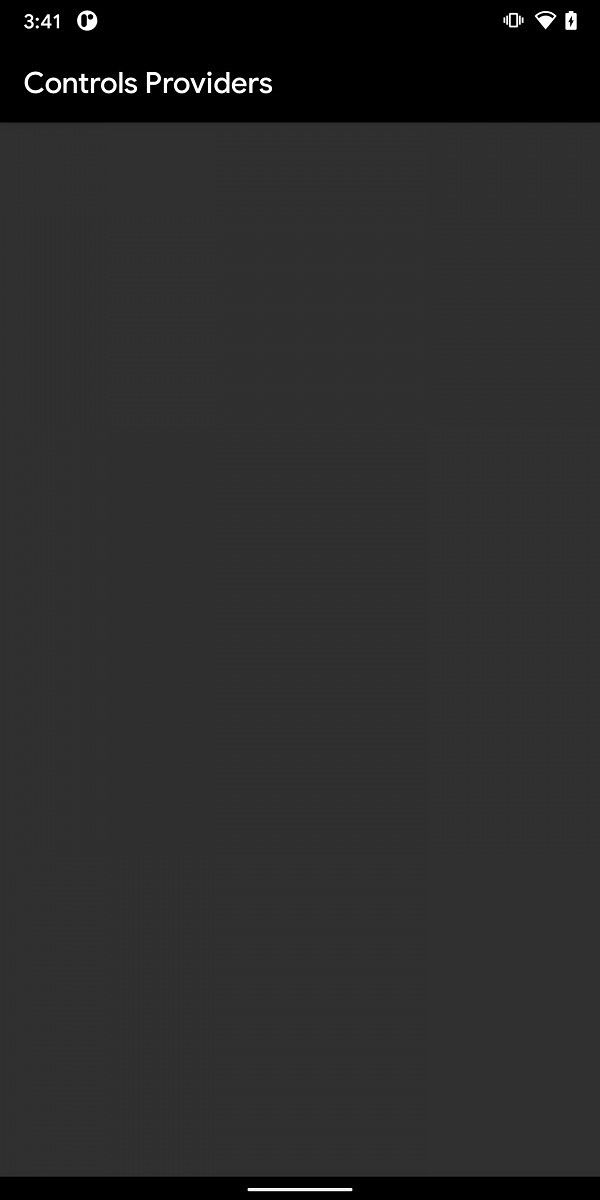
Digging into the code, we discovered multiple classes in SystemUIGoogle related to a feature called “Controls.” The code suggests that the user can set shortcuts as “favorites” to show up in this menu, which are stored by the system in an XML file with the shortcuts’ IDs, titles, types, and components. There are new activities in SystemUIGoogle related to Controls: ControlsFavoritingActivity and ControlsProviderSelectorActivity. Launching the former raises a permission denial as it’s an unexported activity and we don’t have root access while launching the latter brings up the following UI:

Android 11 Controls ProvidersUnfortunately, this UI is empty at the moment, so we aren’t able to add our own favorite shortcuts to the power menu. We found references to a new permission called “android.permission.BIND_CONTROLS” and a new service called “android.service.controls.ControlsProviderService” that suggest that third-party applications will be able to create a “Controls” service that the Android System can bind to and show in this list, much like with Quick Settings tiles. That there are no third-party applications that support the “Controls” API would explain why the activity shown above is empty at the moment.

It looks like Google is taking cues from the iOS Control Center here, though we aren’t entirely sure why Google is working on this feature in the first place given that the Quick Settings panel already exists, and it can be filled with custom shortcuts. We’ll keep track of the development of this feature in case anything changes in future Android 11 Developer Previews.

Android 11 News on XDA

The post Google may turn Android 11’s Power Menu into a Control Center for favorite shortcuts appeared first on xda-developers.


from xda-developers https://ift.tt/38MSh0j
via IFTTT

Google is testing new double tap gestures on the rear of Pixel phones to launch Camera, Assistant, and more on Android 11

Google released the first Android 11 Developer Preview yesterday, and I’ve spent a few hours going through the update on my Pixel 2 XL to search for any changes I can find. We’ve already found a lot, but as always, there’s more hidden in the code that’s just waiting to be uncovered. While looking through the latest SystemUIGoogle APK, the app responsible for the SystemUI component on Google Pixel phones, we found references to a mysterious new gesture system code-named “Columbus.” When activated, the new gestures will allow you to double-tap the back—yes the rear of the phone—to initiate certain actions such as launching the Google Assistant, launching the default camera app, playing/pausing media, and more.

We know this new gesture feature is intended for Pixel phones rather than all devices running Android 11 since Google has kindly stuck to their tradition of prefacing each class with “com.google” rather than “com.android,” a naming scheme they’ve followed for other gesture systems including Active Edge and Motion Sense. What’s interesting about these “Columbus” gestures, in comparison with Active Edge and Motion Sense, is that they seemingly don’t require any special hardware—just your phone’s gyroscope and accelerometer. In fact, we managed to get several of the new gestures working on not only our own Pixel 2 XL but also XDA Senior Member cstark27‘s Pixel 4 XL, both running Android 11 Developer Preview 1. 9to5Google also independently enabled one of the new “Columbus” gestures, though they only showed it launching the Google Assistant.

We can confirm that the following gestures are available through the new “Columbus” feature:

  • Dismiss timer
  • Launch camera
  • Launch Google Assistant
  • Play/pause media
  • Collapse status bar
  • Silence incoming phone calls
  • Snooze alarms
  • Unpin notifications
  • Perform a “user selected action”

In order to prevent this feature from activating too haphazardly, Google has also added “gates” to prevent double tap actions from taking effect. Some of the currently implemented gates include camera visibility, charging status, keyguard, and more.

The code for “Columbus” references a currently non-existent class in SettingsGoogle called “COLUMBUS_GESTURE_TRAINING,” so we believe that the Settings app will contain gesture training activities that are presented to the user during the SetupWizard. We also believe it’s likely the Pixel’s Settings app in Android 11 will have pages to configure the new double-tap gesture, especially to perform the “user selected action.” If the user does not have an action set, it seems that “Columbus” defaults to launching the Google Assistant. Since there currently isn’t any code for “Columbus” in SettingsGoogle or any other system application for that matter, there’s likely more for us to uncover about the feature.

Android 11 Double Tap Gesture Demos

Here’s a video (courtesy of Kieron Quinn) showing the double-tap gesture playing/pausing media on a Pixel 2 XL running Android 11:

The reason Kieron Quinn is using an ancient BBC app is that KeyEvent 85, which is the keycode for the play/pause media key, isn’t being received by most of the music app’s receivers that we tried. An examination of the logcat reveals several warnings that background execution is not allowed, preventing media apps like Google Play Music, YouTube, Amazon Prime Video, Spotify, VLC, and many other apps from receiving the intent.

Here’s a video of me launching the Google Camera app on my Pixel 2 XL running Android 11 DP1:

Lastly, here is a video of me launching the Google Assistant:

Although this feature works just fine on older Pixel devices, we don’t know if Google will enable it for all Pixel devices running Android 11. Google may launch it as an exclusive feature for the Pixel 4a or Pixel 5 before rolling it out for other Pixel devices in future updates. Alternatively, we could see the future roll out in a future  Pixel Feature Drop.


Many thanks to Kieron Quinn, also known as Quinny899 on the XDA Forums, for helping us test this feature!

The post Google is testing new double tap gestures on the rear of Pixel phones to launch Camera, Assistant, and more on Android 11 appeared first on xda-developers.


from xda-developers https://ift.tt/2T0GqW3
via IFTTT

Google support page hints at YouTube Music song uploading launching soon

It’s been close to two years since Google announced its revamped YouTube Music service. Immediately after that announcement, Google confirmed YouTube Music would get the ability to upload music to your collection. We’ve been waiting a long time for this feature, and according to a new support document, it may finally be coming soon.

Last month, strings found in the YouTube Music app indicated that support for an uploaded library was coming. The new support document outlines how users can upload music to YouTube Music on the web. The description reads:

Add your personal music collection to your YouTube Music library by uploading your songs and albums. Once your music is uploaded, you can use YouTube Music to play your uploaded music as part of your listening experience.

Supported file formats for uploads include FLAC, M4A, MP3, OGG, and WMA. Users will have two methods for uploading music to their collection:

  • Drag your file(s) to any surface on music.youtube.com
  • Visit music.youtube.com and click on your profile picture > Upload music

Google notes that it may take some extra time for the music to show up in your library after uploaded. YouTube Music will automatically remove duplicates from your library if you upload something you already have. Uploaded music will be found at Library > Songs > Uploads.

A couple of other things to note: there will be a method for transferring your Google Play Music library to YouTube Music. Music uploads will not impact your recommendations. Uploaded music is only accessible by you, it won’t appear in shared playlists. Uploads can be played offline and ad-free without YouTube Music Premium. Uploaded content can be cast and played on smart speakers.

The ability to upload your own music is one of the features that has kept a lot of people on Google Play Music. It’s really handy to be able to use your music streaming app as a cloud locker for all the music you already own. We hope to see this roll out soon.

YouTube Music - Stream Songs & Music Videos (Free, Google Play) →


Source: Google | Via: 9to5Google

The post Google support page hints at YouTube Music song uploading launching soon appeared first on xda-developers.


from xda-developers https://ift.tt/2vU3sFS
via IFTTT

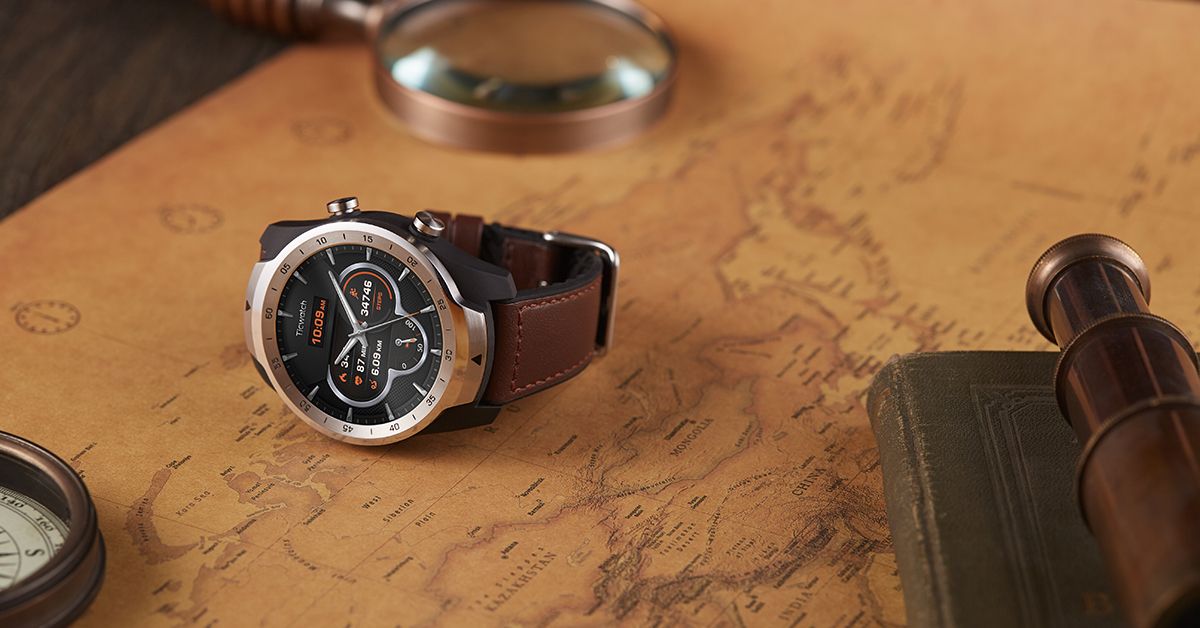
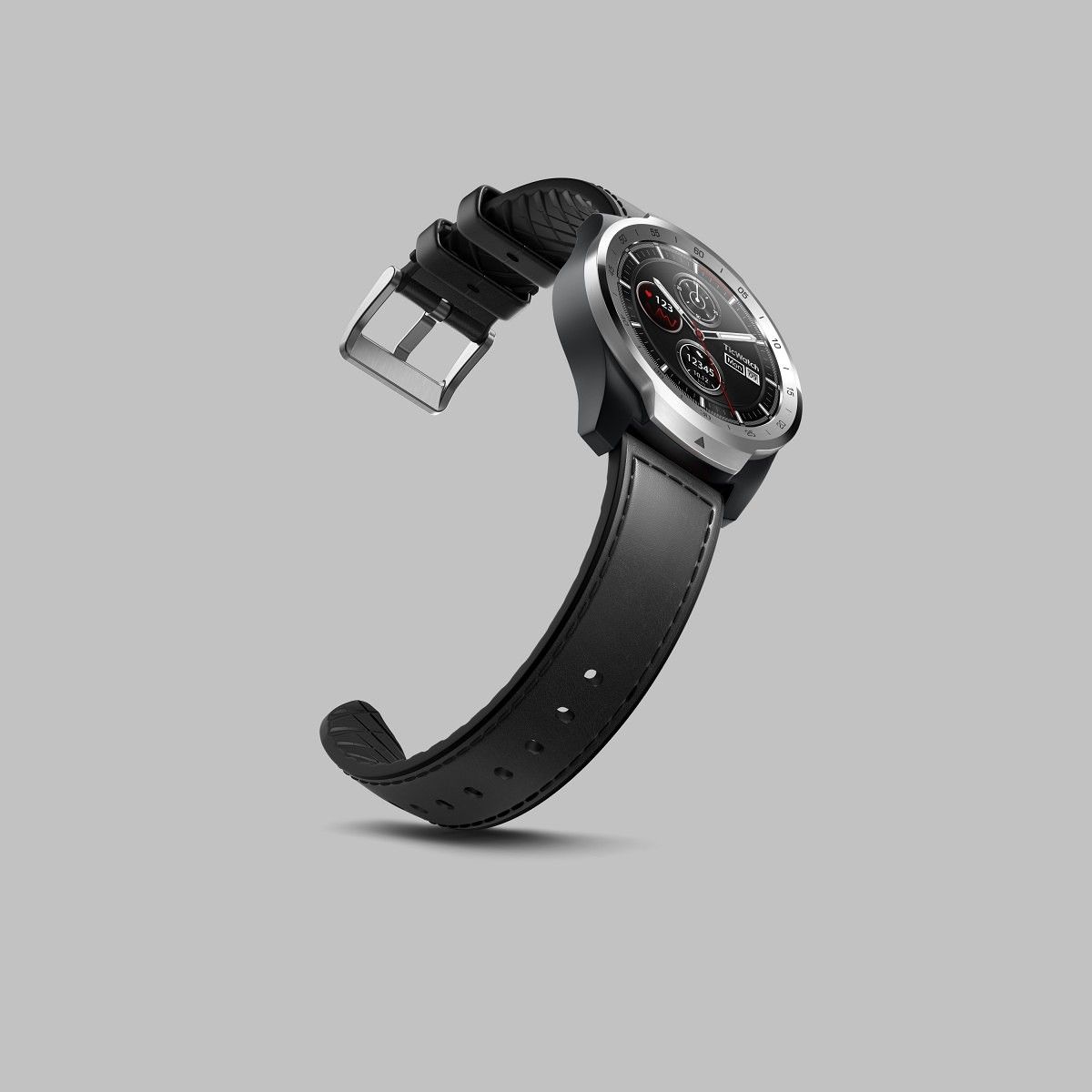
TicWatch Pro 2020 is Mobvoi’s latest Wear OS smartwatch with 1GB RAM and a dual display

There are a few companies still dedicated to pumping out Wear OS smartwatches. One of those companies is Mobvoi, who has released some of the best devices the platform has to offer. Mobvoi released the TicWatch Pro in 2018 with premium specifications and some clever tricks. Last year, the company released an LTE version of the TicWatch Pro. Today, Mobvoi is announcing its latest device, the TicWatch Pro 2020.

You may remember that the TicWatch Pro LTE looked essentially the same as the original TicWatch Pro. However, besides LTE support, it did have a few important upgrades. The TicWatch Pro 2020 has the same upgrades as the LTE model, but this is considered an update to the original WiFi-only TicWatch Pro from 2018. It does not have LTE support.

The biggest upgrade from the original TicWatch Pro is RAM. The 2020 model has double the RAM as the original, putting it at 1GB. This is actually a pretty big deal for Wear OS devices. Wear OS is known for being sluggish, and as I stated in my review of the LTE model, the extra RAM makes a big difference. The 2020 model also has 4GB of internal storage and it’s powered by the Snapdragon Wear 2100 chipset (still no 3100).

Another upgrade over the original TicWatch Pro is the MIL-STD-810G durability rating. The original was only IP68 certified, which the 2020 model is as well. The military standard rating means it can withstand temperature shock of between -22°F and 158°F, remain operational between -4°F and 131°F, 57kpa pressure, 111°F solar radiation, 95% humidity, salt fog, sand, dust, and shock.

You can’t talk about the TicWatch Pro without mentioning the dual-layer display. Mobvoi introduced this on the original TicWatch Pro and the 2020 model has the same great feature. The dual-layer display gives you an extra LCD display on top of the AMOLED display. That extra display essentially acts as your “always-on” display, but it requires very little power. You can squeeze up to 30-days of battery life out of the watch if you heavily rely on the extra display.

Design-wise not much has changed from the original TicWatch Pro. In fact, I can’t really find any differences in the design. The LTE model had knurling around the bezel and buttons, but the 2020 model goes back to the smooth finish of the original. There are two color options to choose from: Black and Silver. There are also several leather and silicone bands to choose from.

The TicWatch Pro 2020 will first roll out in the UK with a price of £222.99. It is available now to purchase in the UK from Mobvoi’s official website and Amazon UK. In the US, the watch will be available in early March for $259.99 on Mobvoi’s website and Amazon.

Model TicWatch Pro 2020
Dimensions (mm) 45.0 x 12.6
Colors Shadow Black, Liquid Metal Silver
Screen cover glass Corning® Gorilla® Glass 3
Watch case Polyamide & glass fiber, stainless steel bezel
Watch strap  Genuine leather, silicone (interchangeable), 22mm
Operating system Wear OS by Google
Phone compatibility Android™, iPhone
Platform Qualcomm® Snapdragon Wear™ 2100
Memory 1GB RAM; 4GB ROM
Display  1.39″ AMOLED (400 x 400 px) + FSTN LCD
Connectivity  Bluetooth v4.2 + BLE, WiFi 802.11 b/g/n
GPS  GPS + GLONASS + Beidou + Galileo
Sensors  PPG heart rate sensor, accelerometer, gyroscope, e-compass, ambient light sensor, low latency off-body sensor
NFC payments  Google Pay via NFC
Battery capacity  415mAh
Military Standard 810G Withstands temperature shock of between -30 °C and 70 °C; operational between -20 °C and 55 °C; 57kpa pressure; 44 °C solar radiation; 95% humidity; salt fog; sand and dust; shock
Waterproof rating  IP68 water and dust resistance

The post TicWatch Pro 2020 is Mobvoi’s latest Wear OS smartwatch with 1GB RAM and a dual display appeared first on xda-developers.


from xda-developers https://ift.tt/2V3sEEG
via IFTTT

Get the Most out of your HONOR MagicWatch 2

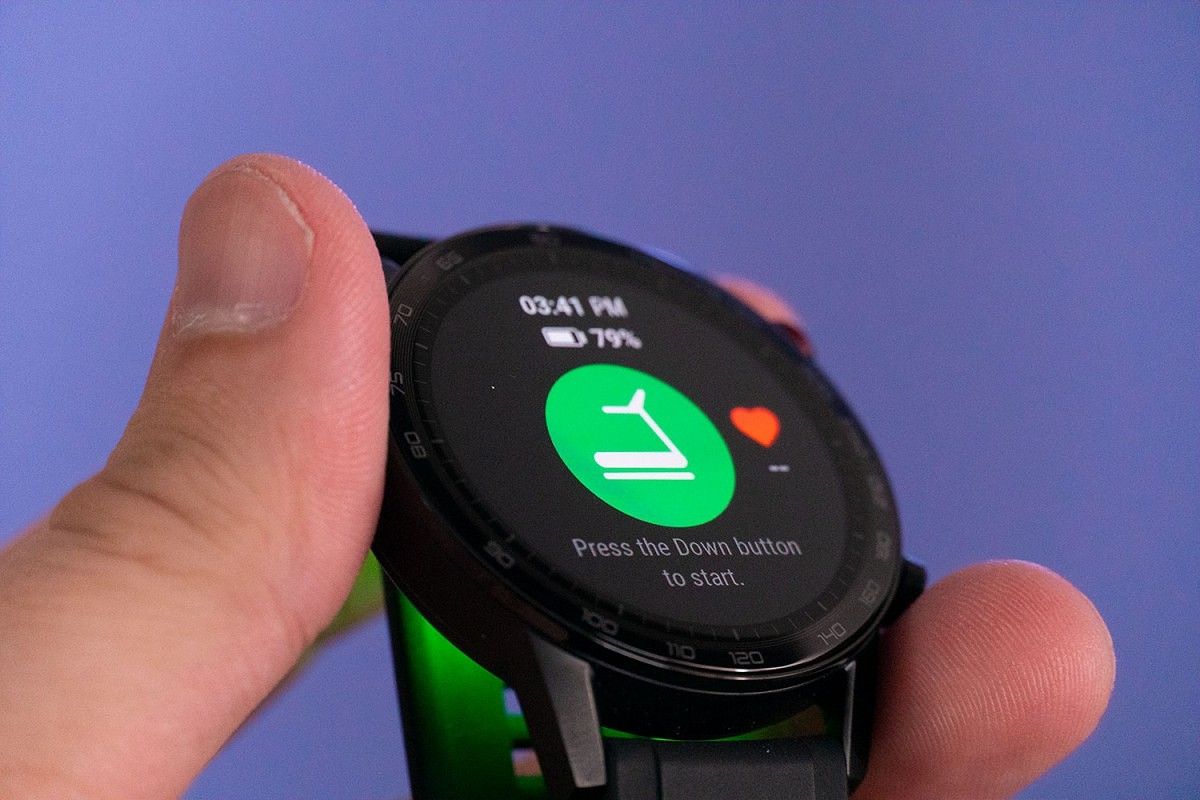
The HONOR MagicWatch 2 is a smartwatch focused on fitness and health. The watch, in combination with the Huawei Health app, is one of the best smartwatches for fitness in 2020. With over 15 different goal-based fitness modes, you’ll be able to accurately track your workout routine and log your results as you improve. If you just bought an HONOR MAgicWatch 2, and you’re looking to get the most out of your new watch, check out some of these tips.

Honor MagicWatch 2 with Huawei Health App

Honor MagicWatch 2 with Workout Tracker

Use the Huawei Health App

The best way to use your HONOR MagicWatch 2 is with the Huawei Health app. This app works seamlessly with the HONOR MagicWatch 2 and is designed specifically to work with many of the features of your watch. You can download the app for free on the Google Play store.

Huawei Health (Free, Google Play) →

Swim with your Watch

Going for a swim? Don’t leave your watch behind. The HONOR MagicWatch 2 is waterproof up to 50m. The all-new HUAWEI TruSeen 3.5, the MagicWatch 2 helps you understand your swim performance better, measuring your heart rate accurately including SWOLF, distance, calories, and speed. Take the HONOR MagicWatch 2 with you on your swimming workouts and track your heart rate accurately.

Wireless Music Playback

Most of the time your smartwatch will be able to control media playback via the Bluetooth connection on your phone. HONOR MagicWatch 2 has 4GB of onboard storage for you to store local music files. Then you can connect directly to your Bluetooth headset and listen to your music without the need for your phone. The reason why this is such a great feature is that lots of people prefer to leave their phone behind while jogging and working out. It is much easier to just have your watch and still have access to all of your music.

Sleep with your Watch

If you sleep with your HONOR MagicWatch 2, you can take advantage of the sleep monitor feature. This will track your sleep routines and give you feedback on the quality of sleep. To get a night of better sleep, try using the breathing exercises before you lay down. They are surprisingly effective at relaxing you and getting your ready for bed.

Use the 13 Running Courses

To make your runs more interesting, HONOR has included 13 different running courses in the MagicWatch 2. These different courses will help train you to improve your endurance, distance, speed ect. This is done by monitoring and adjusting your running based on the course you’ve chosen. Not only does it help you improve your fitness, but it just makes your workout a lot more fun.

HONOR MaigcWatch 2
We thank HONOR for sponsoring this post. Our sponsors help us pay for the many costs associated with running XDA, including server costs, full-time developers, news writers, and much more. While you might see sponsored content (which will always be labeled as such) alongside Portal content, the Portal team is in no way responsible for these posts. Sponsored content, advertising, and XDA Depot are managed by a separate team entirely. XDA will never compromise its journalistic integrity by accepting money to write favorably about a company, or alter our opinions or views in any way. Our opinion cannot be bought.

The post Get the Most out of your HONOR MagicWatch 2 appeared first on xda-developers.


from xda-developers https://ift.tt/37CUquk
via IFTTT