LightBlog

vendredi 25 décembre 2020

The best Nintendo Switch games to play with the whole family

You’ve unwrapped your presents and surprise! There’s a Nintendo Switch under the tree just for you! Nintendo has managed to figure out their popular console’s stock issues just in time for the holiday shopping season, so many gamers will be happy. But you know, if you live with your family, you might want to consider some Switch family games — some titles that everyone can enjoy together. We all might love games like Breath of the Wild, but it’s always great to have some multiplayer titles everyone can enjoy. Of course, you’ll also need to make sure you have some Switch controllers to go around!

We’ve rounded up the 10 most family-friendly Switch games you can pick up. From games suited for the youngest to party titles for an overall older crowd, there’s a great game in here for every household.

Mario Kart 8 Deluxe

Mario Kart 8 Deluxe key art

Of all the games on this list, Mario Kart 8 Deluxe is sure to please everyone in the family, no matter their age. A port of the Wii U game, Mario Kart 8 Deluxe includes all the characters and tracks from the Wii U DLC, all in one package on a console people are more likely to own. The gameplay is also solid and very refined, making the racing title easy to learn, but more difficult to master when you’re playing on higher difficulties. For those that may not know their way around a controller, options exist to help players stay on the roads and still be able to race against the more gaming-savvy family members. Items that can change the outcome of the race with one well-timed use help too!

You can pick up Mario Kart 8 on its own, or head to Target for an exclusive pack with the racer and the next game on our list!

    Mario Kart 8 Deluxe
    Mario Kart 8 Deluxe is the most polished and feature-complete Mario Kart yet! With all sorts of tracks to race on and characters to unlock, everyone will have a great time playing this fun and beautiful racing game.
    Mario Kart 8 Deluxe + Super Mario Party
    If you're looking for more than one party game, then head over to Target! They have an exclusive bundle of Mario Kart 8 Deluxe and Super Mario Party for just $100. You save $10 on each title!

Super Mario Party

Super Mario Party Key Art

Who doesn’t love a good game of Mario Party? The Switch entry to the long-running multiplayer series is as good as ever. With a variety of maps and modes to choose from, you’re not likely to get bored of the title anytime soon. While the main mode is a board game-like setup where luck plays a factor, you can also employ some strategy with characters and allies having different types of dice to roll. There’s also an interesting co-op mode and modes that let you focus more on the mini-games for fun competitions.

If you’re interested in both Super Mario Party and Mario Kart 8 Deluxe, you can pick up an exclusive double-pack from Target and save. Otherwise, you can pick up this Switch title from Amazon!

    Super Mario Party
    Super Mario Party is one of the best entries to the series yet. Enjoy competitive and co-op modes that rely on luck and skill in this board-game like title!
    Mario Kart 8 Deluxe + Super Mario Party
    If you're looking for more than one party game, then head over to Target! They have an exclusive bundle of Mario Kart 8 Deluxe and Super Mario Party for just $100. You save $10 on each title!

Animal Crossing: New Horizons

animal crossing new horizons winter update key art

What would make the relaxing island life even better? Sharing it with family! Up to four people can move onto one island and start living their best island life on one save file. Teach the kids the value of sharing while you work to get that final fossil you need for the museum. Not only that, but you can go online easier than ever before in New Horizons, and enjoy up to eight players’ company on one island with local or online multiplayer. There’s nothing better than whacking your friends and family on the head with your bug net.

While there’s a special Animal Crossing Switch console, it mysteriously doesn’t come with the game itself. You’ll have to pick it up separately from Amazon.

    Animal Crossing: New Horizons
    Enjoy the relaxing island life with your family in Animal Crossing: New Horizons. Catch bugs and fish, talk with villagers, and build the island of your dreams, together!

Kirby Star Allies

kirby star allies key art

Looking for something that even the youngest in your family can enjoy? Then you can’t go wrong with Kirby Star Allies. Every Kirby game has a little gimmick to go with it, and this Switch title’s gimmick is having up to three former enemies or allies accompany Kirby on his quest to save Popstar and the universe (again). The title is built for drop-in multiplayer, and the mix-and-match style of the power-ups is delightful. In addition, you don’t lose a life unless Kirby himself dies, meaning that younger children can take control of one of the allies and simply have fun without worrying about failing.

    Kirby Star Allies
    Who doesn't love Kirby? You and up to three others can enjoy running through this platformer. Mix and match powers, and even the youngest can have fun controlling allies without worrying about losing lives.

Clubhouse Games

Clubhouse Games key art

Round-ups of classic board games in a video game isn’t the most uncommon thing in the world. However, Clubhouse Games does it all really well. Bringing 51 classic games in one package, Clubhouse Games makes it easy to start up a game with family without having to try and find and set up the physical board themselves. These Switch family games can be played locally in handheld mode with the touch screen, or in docked mode with controllers. Best of all, if another person owns the collection, you can quickly and easily hook up for online multiplayer!

Do you know what else is great about Clubhouse games? It forgoes the typical $60 Switch game price point and has a $40 MSRP. With so many games on offer, that’s a great value!

    Clubhouse Games
    If you're looking for classic board games on the Switch, you really can't do better than Clubhouse Games. At $40 for 51 games, this is the best valoue on the list.

LEGO City Undercover

LEGO games are a blast to play. They simply are! I’ve enjoyed the goofy humor and low-stress gameplay of the LEGO games for years now. Even if they sometimes feel same-y at times, it really doesn’t hurt to add at least one LEGO title to your collection. LEGO City Undercover is one of the titles that isn’t based on a popular franchise, so everyone can have fun with this title without needing to get the references. Really, though, any LEGO game you pick up with be a hit with children and adults alike.

    LEGO City Undercover
    You can't go rong with LEGO! No matter which title you choose, you'll be in for a low-stress, silly time.

Snipperclips

I haven’t played Snipperclips myself, but countless friends and colleagues have told me how fun of a multiplayer game it is, especially with a kid. Snipperclips is a puzzle game that centers around Snip and Clip as they work together to solve puzzles and overcome obstacles. It’s cute, it’s clever, and it’s only $20. You really can’t ask for much else for a Switch family game!

    Snipperclips
    Cute and fun puzzle games are always great to play with your kids! Snipperclips is a co-op puzzle games that everyone is sure to enjoy.

Minecraft

Sometimes you just can’t beat one of the most popular games around. Minecraft lets everyone explore their creativity with the ability to build anything you can dream up, if you have the resources for it. Those more into exploring can set off into the randomly generated world, looking for treasure and Creepers as they work through the minimalist story. Set up a multiplayer server and your whole family can share, build, and explore the same world together. You don’t even need to all be online at the same time to join in on the Switch family game fun!

Minecraft is available on every modern console, and most of them are cross-play too. No need for everyone to own a Switch to enjoy this one.

    Minecraft
    Minecraft is one of the most popular games around for a reason. Build, explore, and more together, and even enjoy multiplayer with friends and family on other consoles!

Super Smash Bros. Ultimate

If you’re looking for a title so that your family can duke it out, you can’t go wrong with Super Smash Bros. Ultimate. The fighting game has simple inputs that anyone can get the hang of, and the ever-growing roster of characters ensures that you will find a character that matches your playstyle. You can also introduce handicaps into the match so that more experienced players won’t trounce the competition constantly, making it fun for the whole family.

    Super Smash Bros. Ultimate
    Everyone is here, and everyone wants to play Super Smash Bros. Ultimate. Choose from over 70 fighters and duke it out with up to eight players.

Jackbox Party Pack 6

Jackbox is the perfect party game if everyone in the family is a little older. There are seven Jackbox Party Packs available on the Nintendo Switch, but I’d personally recommend Party Pack 6 out of the bunch. Granted, that’s just because it has a few of my favorite games of the bunch, and your tastes may vary! Each Party Pack has a bundle of Jackbox games to enjoy, and are anything from silly word games to designing crazy T-shirts to rap battles and more. No matter which pack you choose, you’re unlikely to walk away disappointed after a fun and funny party night.

    Jackbox Party Pack 6
    Pick a pack and have some fun with Jackbox! Each Jackbox Party Pack has some different games to enjoy. Choose the pack that you think you'll have the most fun with!

Unsure of which Switch family game to pick up after browsing our list? At $40, Clubhouse Games provides amazing value and features classic board games that everyone will recognize. If you’re looking for something a little more action-packed, then Mario Kart 8 Deluxe is sure to make everyone happy!

What games do you like playing with your family? Let us know in the comments!

The post The best Nintendo Switch games to play with the whole family appeared first on xda-developers.


from xda-developers https://ift.tt/3psgEsn
via IFTTT

7 top apps with an extra 15% off in this 2-day Christmas sale

While the main shopping season has passed for another year, Christmas still has some gifts in store. Whether you want to learn something new or improve your workflow, these highly-rated apps can help. Use promo code MERRY15 to save an extra 15% at the XDA Developers Depot in this two-day sale.

Mondly: Lifetime Subscription

Fancy learning a language in 2021? Mondly helps you start speaking faster, using advanced speech recognition and native speaker audio to teach you new words. It’s a Google Play and App Store award winner.

Get a Mondly lifetime subscription for $59.49 (reg. $1,199) with promo code MERRY15. 

XSplit VCam: Lifetime Subscription

From video calls to YouTube production, this Windows app helps you create perfect green screen backgrounds. It even adds a DSLR-style blur, which can be adjusted with a slider to make the overall effect seem more natural. 

Get XSplit VCam on a lifetime subscription for $15.99 (reg. $49) with promo code MERRY15. 

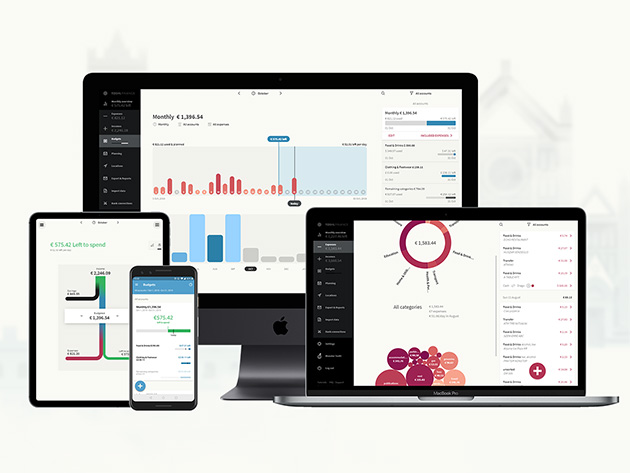
Toshl Finance Medici Plan: 3-Yr Subscription

Rated at 4.5 stars on Google Play and 4.7 stars on the App Store, Toshl Finance helps you take control of your spending. The app syncs with 13,062 banks and financial services around the world to provide live data from your bank accounts.

Get three years of Toshl Finance for $33.99 (reg. $199) with promo code MERRY15. 

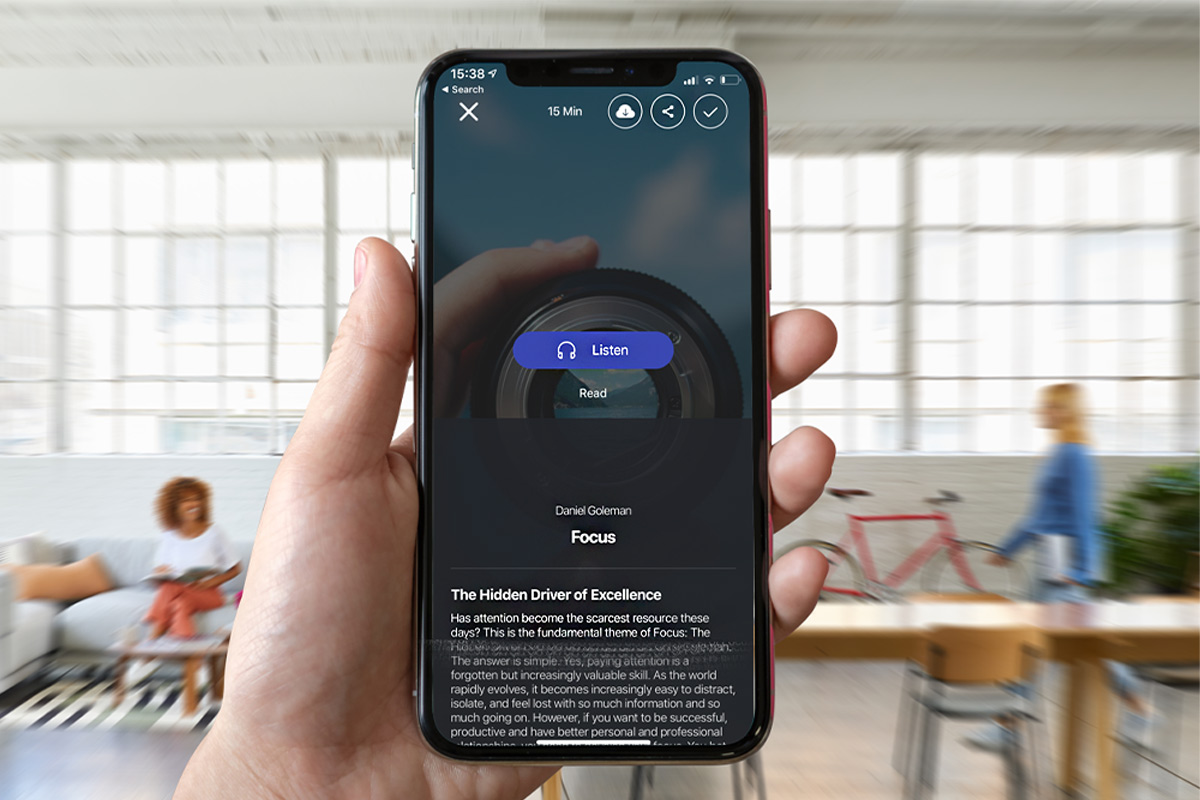
12min Micro Book Library: Lifetime Premium Subscription

Which is better: spending 2021 finishing three books, or completing your entire reading list in 12 months? Available on Android and iOS, 12min condenses over 1,800 top reads into short summaries that you can enjoy in a lunch break.

Get lifetime access to the 12min library for $51.15 (reg. $399) with promo code MERRY15. 

Knowable Audio Learning Platform: Lifetime Subscription

Prefer listening over reading? Knowable offers a huge selection of high-quality audio courses from over 200 world-class experts. It covers a vast range of topics, and the app was named one of Google Play’s “New Apps We Love”.

Get a Knowable lifetime subscription for $50.99 (reg. $249) with promo code MERRY15.

IPVanish VPN: 1-Yr Subscription

With over 40,000 IPs and 1,600 servers around the world, IPVanish truly lets you…well…vanish. It also offers unlimited bandwidth, with a strict zero-log policy. In the words of CNET, this service is “fun, fast, and flexible.” 

Get one year of IPVanish VPN for $34.65 (reg. $143) with promo code MERRY15.

Methods of Leadership Online Learning: Lifetime Subscription

Created by Marshall Goldsmith and several top thought leaders, the Methods of Leadership is a certification program that helps you take on management roles with ease. You get 500 chapters of content in total, with live interaction and workbooks included.

Get lifetime access to the Methods of Leadership for $125.79 (reg. $2,940) with promo code MERRY15. 

Prices subject to change 

The post 7 top apps with an extra 15% off in this 2-day Christmas sale appeared first on xda-developers.


from xda-developers https://ift.tt/3hjy6MK
via IFTTT

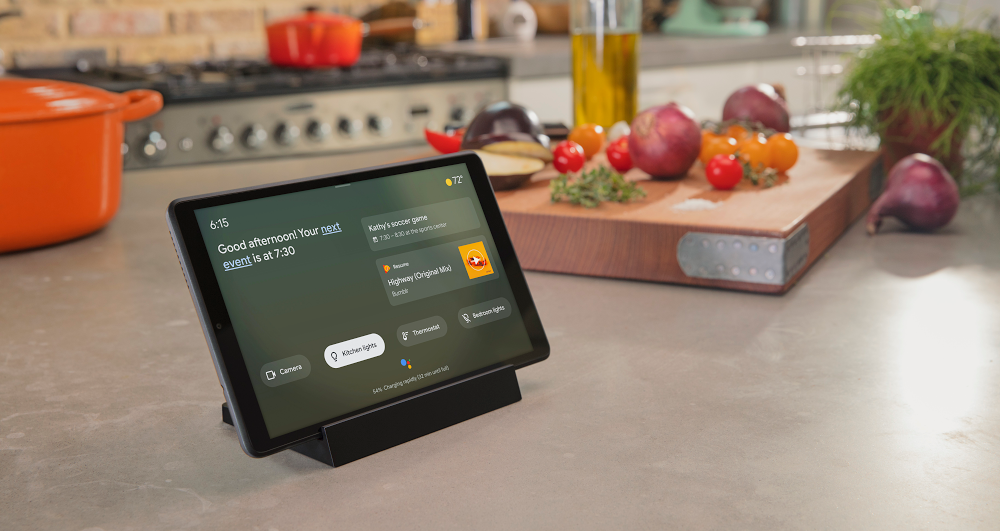
All the OK Google commands and How to use them

Google Assistant is a very powerful tool we should all learn to wield properly. Even if you’re not deeply invested in the Google ecosystem, it’s still a nice tool to have, as it’s one of the most flexible and capable voice assistants, not just for Android, but for any device in general. Nowadays, it’s integrated into phones, TVs, tablets, and smart home devices, and smart displays, and even trigger it from wired earphones!. Hell, you can even find it on some “dumb phones” now, thanks to KaiOS. But what exactly is the extent of Google Assistant? What exactly can you do by saying “OK Google” and talking to your smartphone?

Spoiler alert: a lot. But if you’ve ever wondered this, then in this article, we’re gonna give a quick rundown on some of the most useful “OK Google” commands you can utter to your Google Assistant, be it for making your life a little easier or just getting a laugh from you. Follow along!

Essential OK Google commands

google assistant samsung bixby gassist

First up, we’re going to start with some basic functionality that you can ask the Google Assistant. You can ask it to launch an app, either pre-loaded or downloaded. So for example, if I wanted to ask it to open WhatsApp, for example, I can say “Ok Google, open WhatsApp”. This also works for opening websites and searching the Internet by asking the Google Assistant to open whatever URL you want by just saying “go to website.com”, or asking it to search anything you want by saying “search for [search term]”.

  • Ok Google, open [App Name]
  • Go to [Website URL]
  • Search for [Search Term]

You can also configure, enable, and disable some hardware features as well. For example, you can ask the Assistant to turn on or off Bluetooth, Wi-Fi, or your flashlight/torch without having to touch your smartphone. Additionally, you can also tweak the volume higher, lower, or to a specific percentage.

  • Ok Google, turn on/off Bluetooth/Wi-Fi/the flashlight
  • Turn the volume up/down/to [number] percent
  • Mute the volume

Ok Google Camera Commands

There are lots of scenarios where you might want a way to use your phone’s camera hands-free. For example, you might set it on a tripod to take a picture of yourself and you don’t have another person to take the picture for you. Or, maybe you just want to take a selfie hands-free for whatever reason (maybe your phone is too big and it’s too hard to use with one hand). And this is where the Google Assistant comes in handy. You can, for example, ask it to take a picture or take a selfie, or even record a video, without having to press the shutter button yourself.

  • Ok Google, take a picture
  • Take a selfie
  • Record a video

Ok Google Alarms, Timers, and Reminders Commands

Google Assistant Workday Routine


Need to quickly set an alarm or timer but your phone’s in your bag or in your pocket and you might forget later? Don’t worry, the Google Assistant also has you covered on that front, provided you ask it to help you out. You can use it to quickly set an alarm, read you aloud your current alarms, or turn off all active alarms by just kindly asking your phone to do so, without having to access the Clock app.

  • Ok Google, set an alarm for [time]
  • Set a repeating alarm for [time] on [days]
  • Show me my alarms
  • Turn off all alarms

You can also set timers just like you would set alarms, and configure them exactly the same way. You can set one for the amount of time you want, or ask Google to show you your timers, or simply turn them all off.

  • Ok Google, set a timer for [length of time]
  • Show me my timers
  • Turn off all timers

Last but not least, you also have the ability to quickly set reminders as well as recurring reminders for anything you want, anytime you want.

  • Ok Google, remind me to [task and time/location]
  • Remind me to [task name] every [day/time]
  • Note to self

You can also set calendar events or check out calendar events you’ve previously set, as well as checking out things like tracking packages and upcoming appointments.

  • Ok Google, create a calendar event
  • Where’s my package?
  • What’s my next appointment?
  • What does my day look like?
  • What does my day look like on [insert day]?

Ok Google Messaging/Call Commands

You can use the Google Assistant to quickly call and text people in your contacts with your voice, completely hands-free. But how do you go about that? Well, first of all, you can call people, as long as they’re in your contacts, by quickly asking it to call.

  • Ok Google, call [Contact Name]
  • Call [Contact Name] on speakerphone

Texting is also possible by dictating the Google Assistant the name of your contact and the content of your message. You can also ask it to show you your latest messages, send an email, and much more, as well as retrieving information about your contacts such as their number and their birthday.

  • Ok Google, text [Contact Name and Message Content]
  • Show me my messages
  • Send email to [Contact Name], subject [your subject], message [email message content]
  • Listen to voicemail
  • Find [Contact Name]’s number
  • When is [Contact Name]’s birthday?

You can even go as far as to interact with other apps. You can, for example, post something to Twitter or message someone on WhatsApp through the Google Assistant.

  • Post to [Social Network Name]
  • Text [Contact Name] on [App Name]

Ok Google Music/Media Commands

What if you’re driving and you want to change the song that’s currently playing on your smartphone? Or what if you’re using a smart speaker and want to play a song? Then the Google Assistant will do that for you and much more. You can ask it to play a specific artist, song, album, or even a playlist of one specific music genre on your music platform of choice. Additionally, you can also ask it to identify a song for you. Or just ask it to play music, plainly and simply, and let it guess what you want to hear.

  • Ok Google, play [Artist/Album/Song/Genre]
  • What’s this song?
  • Play some music

You can also do the same with movies. Have Netflix installed? Then you can ask it to play a specific movie or series, or if you’re more of a moviegoer, you can also ask what movies are playing.

  • Ok Google, watch [Movie Name]
  • What movies are playing tonight?
  • Where is [Movie Name] playing right now?

Ok Google Navigation/Travel Commands

google assistant android tv

The Google Assistant can assist (no pun intended) you with things like navigation, travel, and much more, thanks to Google Maps integration. You can, for example, ask it to navigate to a specific location or address, or ask it for directions to that address either if you’re walking or biking there. You can also ask it to find a specific landmark and have Google tell you where it is and how to get there, and it can also give you directions for, say, if you want to find the nearest Chinese food restaurant, and show the menu of that same restaurant.

  • Ok Google, navigate to [Location Name or Address]
  • Give me [Walking/Biking] directions to [Location Name or Address]
  • Find [Name of Landmark]
  • Where is [Landmark Name]?
  • Where’s the nearest [Type of Business]?
  • Show me the menu for [Restaurant Name]
  • Call [Business Name]
  • Book me an appointment at [Business Name]

Are you going to travel soon? Then you can also ask for travel-specific commands, such as having the Assistant show you your flights, directions to your hotel (which can be greatly useful when arriving to a foreign country), as well as doing quick conversions and showing you attractions of that place. You can also get specific information for your flight, and specific information of a country’s businesses and attractions.

  • Ok Google, show me my flights
  • What’s the flight status of [Airline] flight [flight number]?
  • Where is my hotel?
  • What is the time zone in [Place Name]?
  • What’s the tip for [total bill amount]?
  • Is [attraction/business] open now?
  • What are some attractions in [City/Place/Around Here]?
  • What is [amount of money in foreign currency] in [your currency]?
  • When does [attraction/landmark/business] close?
  • Distance from here to [landmark/location]?
  • How far away is [place name]?

Ok Google Weather Commands

Google Assistant Ambient Display

Telling the weather has always been one of the headlining features of the Google Assistant, and even in its precursor, Google Now. It has always been showcased by showing the weather. So yes, this functionality exists, and it works pretty darn well. You can ask the Google Assistant to tell you how’s the weather in your current location or in a specific location, and ask it to tell you a whole bunch of details regarding the weather. You can also use some creative ways to ask if it’s going to rain, if you’re into that sort of thing.

  • Ok Google, what’s the weather like?
  • What’s the weather in [Location] for [day or time period]?
  • What’s the temperature?
  • When is [sunrise/sunset]?
  • Do I need an umbrella today?
  • Is there a chance of rain [today/tomorrow/date]?
  • When is [sunrise/sunset] in [place name]?

Google Assistant Information Commands

Want to inform yourself on a specific topic? Then the Google Assistant can help you out. While it used to be that you had to Google something in order to know it, nowadays chances are that, if something is common, public knowledge and it’s a simple question, the Google Assistant can just spit out the answer right away. But how well does it work exactly? Well, here are just some examples of what you can ask the Assistant, ranging from movie trivia to stock trading and everything in between.

  • Ok Google, who’s the producer of [Movie Name]?
  • How old is [Famous Person]?
  • What is the square root of [number]?
  • Who acted in [Movie Name]?
  • Who wrote [Book Name]?
  • What time is it in [City/Location]?
  • What’s the runtime of [Movie Name]?
  • When was [Movie Name] released?
  • When is the next [Team Name] game?
  • Who won the Oscar for Best Actor of [Year]?
  • Did the [Sports Team] win today?
  • Who invented the [Invention Name]?
  • How do you say [Word or Phrase] in [Language]?
  • What is [Company Name] trading at
  • What’s [Company Name] ‘s stock price?

Games with Google Assistant

Google Assistant

The Google Assistant can also have fun with you if you want to! You can play some mini-games as well, such as solitaire and tic-tac-toe, or just let it decide.

  • Ok Google, play [solitaire/tic-tac-toe]
  • Ok Google, I’m feeling lucky
  • Ok Google, spin the wheel

Would you like an actual game instead? Like, a triple-A title? Then it’s also possible to ask this to the Assistant if you’re a Google Stadia user: just ask it to play the game of your choice and, as long as it’s in Stadia’s ever-growing catalog of games, it will open it.

  • Ok Google, play [Game Name]

Bonus – Google Assistant Easter Eggs

Aside from just games, there’s a lot you can ask the Assistant if you want to have a laugh or two. It’s peppered with Easter eggs back and forth, waiting for you to discover them. It’s not just the classic “tell me a joke”: Google has actually implemented a lot of pop references and cool features into the service for you to find in classic Google fashion, ranging from movie references to memes. Here are just some of those easter eggs, in no particular order.

  • Ok Google, read me a poem
  • Ok Google, tell me a joke
  • Ok Google, what is the loneliest number?
  • Meow like a cat
  • Is the cake a lie?
  • Who is the walrus?
  • Spell Supercalifragilisticexpialidocious
  • How do you like your coffee?
  • Is your refrigerator running?
  • What am I thinking right now?
  • What’s your favorite Pokemon?
  • Sing a song
  • Do a barrel roll!
  • All your base are belong to us
  • Who’s on first?
  • Beatbox
  • What is the meaning of life?
  • Ask me a question
  • Surprise me
  • Here comes dat boi
  • Who’s your favorite superhero?
  • What is love?
  • Mischief managed
  • Can you rap?
  • Askew / Tilt
  • Are you friends with Siri/Alexa/Cortana?
  • Do you know of GLaDos?
  • When am I?
  • Clean my room
  • My milkshake brings all the boys to the yard
  • What is [Actor/Actress Name] Bacon number?
  • Who you gonna call?
  • Set phasers to kill

These were some of the most essential Ok Google commands everyone should know of. While it’s far from all of them (putting together such a list is very hard), knowing all of these tricks should allow you to take full advantage of the complete potential of the Google Assistant. The service’s functionality is constantly improving and constantly being refined, so we’re always getting new cool, interesting commands, and features, 4 years into its initial release.

Are you a Google Assistant user? If so, what do you like the most about it?

The post All the OK Google commands and How to use them appeared first on xda-developers.


from xda-developers https://ift.tt/3pmTZxp
via IFTTT

jeudi 24 décembre 2020

Realme Watch S Pro Review: Realme finally got it right

Realme entered the fitness wearables segment in India with the launch of the Realme Band earlier this year in March. Although the fitness band wasn’t as well-received as Realme may have expected, the company pushed forth and launched a second fitness wearable, the Realme Watch, in May. The Realme Watch did bring some significant improvements over the Realme Band, we didn’t find it to be as polished of a product as some of its competitors. So when we first got word that Realme was gearing up to launch two premium smartwatches in India, we kept our expectations grounded. After having used the Realme Watch S Pro for a little over a week, I can safely say that Realme has learned from its mistakes and has finally created a product that can hold its own against competitors from Xiaomi and Amazfit.

Realme Watch S Pro: Specifications

Specification Realme Watch S Pro
Dimensions & Weight
  • 257.6 x 46 x 11.1mm (with strap)
  • 63.5g (with strap)
Materials
  • Stainless steel case, silicone strap
Strap
  • Standard 22mm quick release
Display
  • 1.39-inch AMOLED touch display
  • 454 x 454 pixels
  • 326 ppi
  • 450 nits
  • Gorilla Glass 3
Compatibility
  • Android 5.0 or iOS 9 and above
Sensors
  • PPG heart rate sensor
  • 6-axis accelerometer
  • Gyroscope
  • Geomagnetic sensor
Connectivity
  • Bluetooth 5.0 BLE
  • Dual-satellite GPS
NFC payments No
Battery 420mAh, proprietary charging dock
IP rating  5ATM water resistance, IP68
Colors Black

Note: The Realme Watch S Pro was loaned to us by Realme India for the purpose of this review. The review was written after a week of use. Realme did not have any input regarding the content of this review.


Realme Watch S Pro: Design & Display

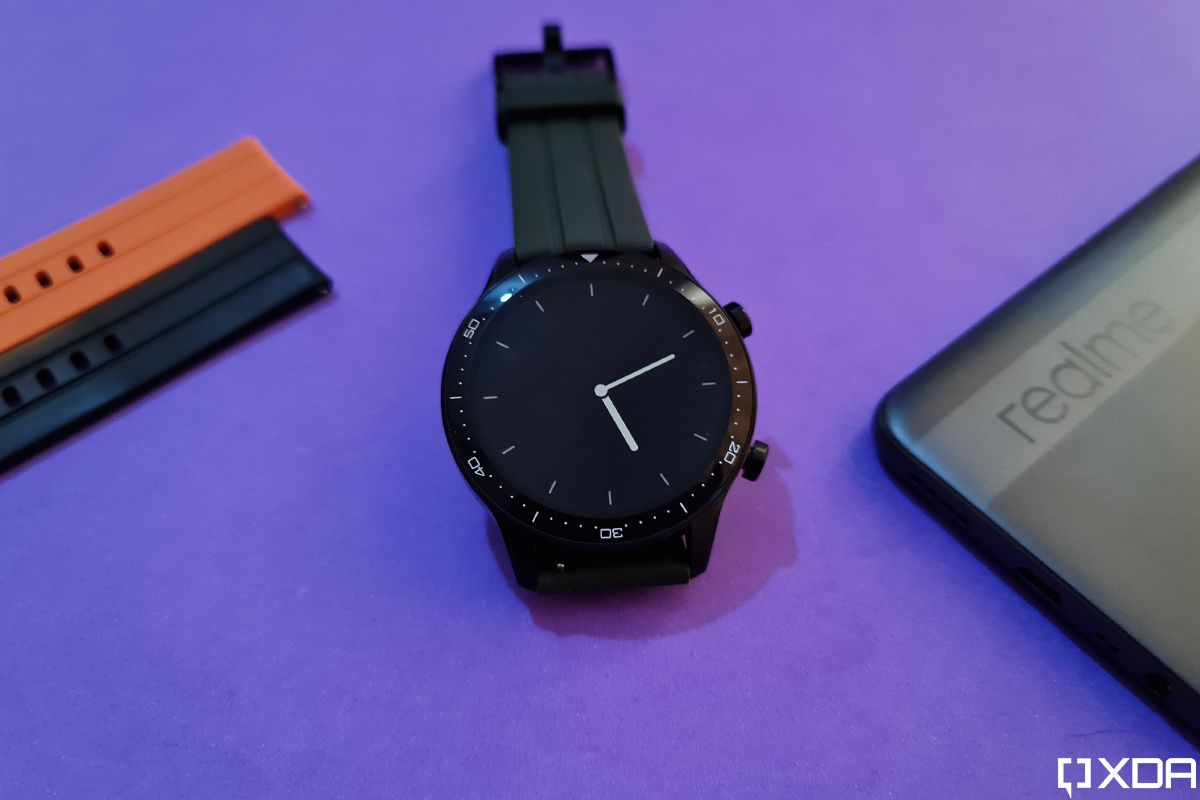
The Realme Watch S Pro offers a premium design that’s befitting of its price tag. It has a 46mm stainless steel case with two buttons on the right edge that control all of its functions. While the case is almost as thick as that of the Mi Watch Revolve, it doesn’t have a raised lip around the display. This, coupled with the matte black finish, makes it seem like the Watch S Pro is a bit smaller than the Mi Watch Revolve and it doesn’t look as massive on my wrist. However, I would’ve still preferred a smaller 42mm or 44mm variant.

Realme Watch S Pro with orange strap on wrist

Much like the Mi Watch Revolve, the Realme Watch S Pro packs a 1.39-inch AMOLED display in the chunky 46mm case. The display is surrounded by a slim bezel within the case and a thicker bezel around it, which features dial marks that aren’t as subtle as the ones found on the Mi Watch Revolve. To prevent scuffs and scratches in everyday use, the display on the Watch S Pro is protected by Corning’s Gorilla Glass 3.

Realme Watch S Pro back

The display on the Realme Watch S Pro is quite vibrant and it gets sufficiently bright for optimal visibility in direct sunlight.

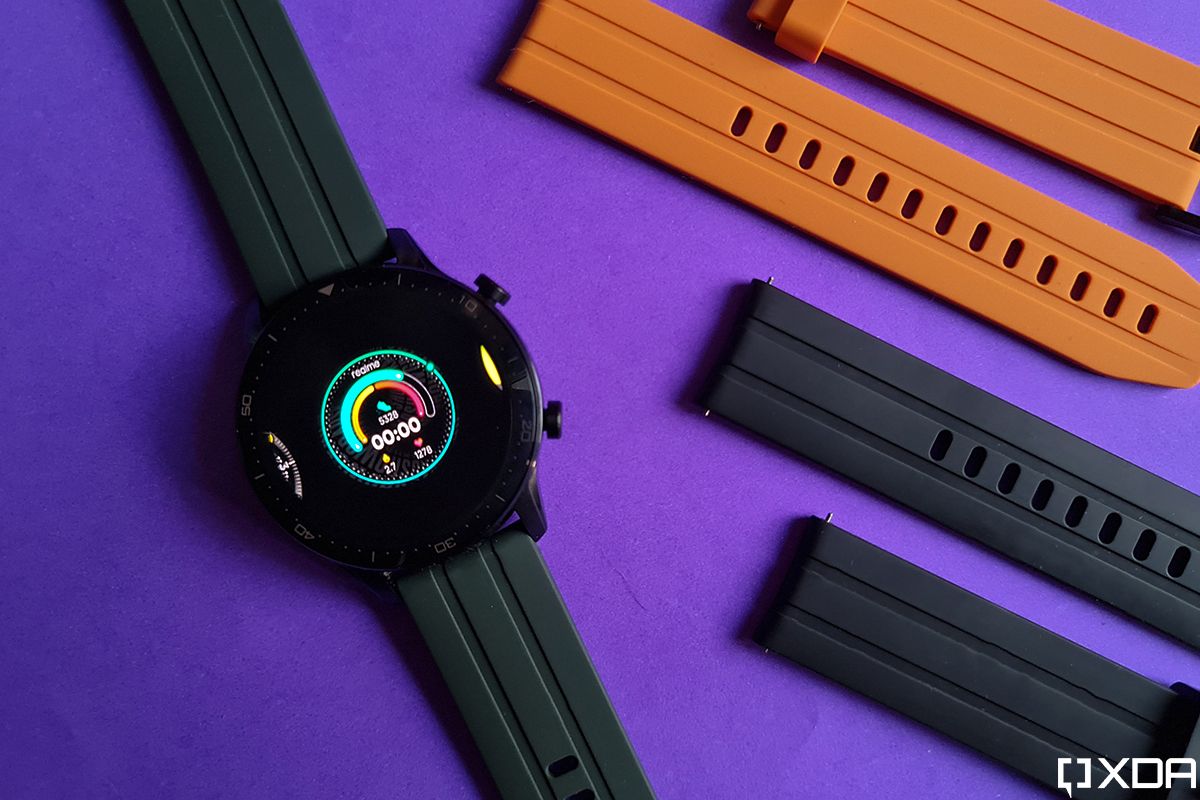
The Realme Watch S Pro comes in a single black color variant with a black silicone strap. But if you’re not a fan of the muted all-black look, you will be able to purchase three other color variants — Orange, Blue, and Green — early next year. The company also plans to offer premium vegan leather straps for the watch, which will be available in four color options — Orange, Black, Blue, and Green. In case you don’t like any of the aforementioned strap options, you’d be glad to know that the Realme Watch S Pro uses standard 22mm quick-release straps. So, you’ll be able to pick any of the numerous third-party options available online based on your personal taste.

Now that we’ve talked at length about the design of the Realme Watch S Pro, let’s take a closer look at its display. The 1.39-inch touch-sensitive AMOLED panel on the watch offers a resolution of 454 x 454 pixels, a pixel density of 326ppi, a peak brightness of 450nits. As you’d expect, the display is quite vibrant and it gets sufficiently bright for optimal visibility in direct sunlight. This is something that Realme has struggled with in its previous offerings, and I’m glad to see the company taking steps in the right direction.

Realme Watch S Pro display

The Realme Watch S Pro offers 5 levels of brightness settings and an auto-brightness mode. I used the smartwatch on level 3 for the majority of my testing and I didn’t face any visibility issues. As with the Mi Watch Revolve, the Realme Watch S Pro comes with an always-on display feature, which displays the time, date, and day on the display in either a digital or an analog format. But I wouldn’t recommend using this feature if you have raise-to-wake turned on, as it takes a significant toll on the watch’s battery life.

Realme Watch S Pro: Features

As with most other smartwatches in the sub-₹15,000 price range, the Realme Watch S Pro is nothing but a fitness tracker with a large display. It offers pretty much all the fitness tracking features you’d find on the much cheaper Realme Watch, but you can expect to see better tracking capabilities because of the premium hardware.

Realme Watch S Pro watch face on purple background

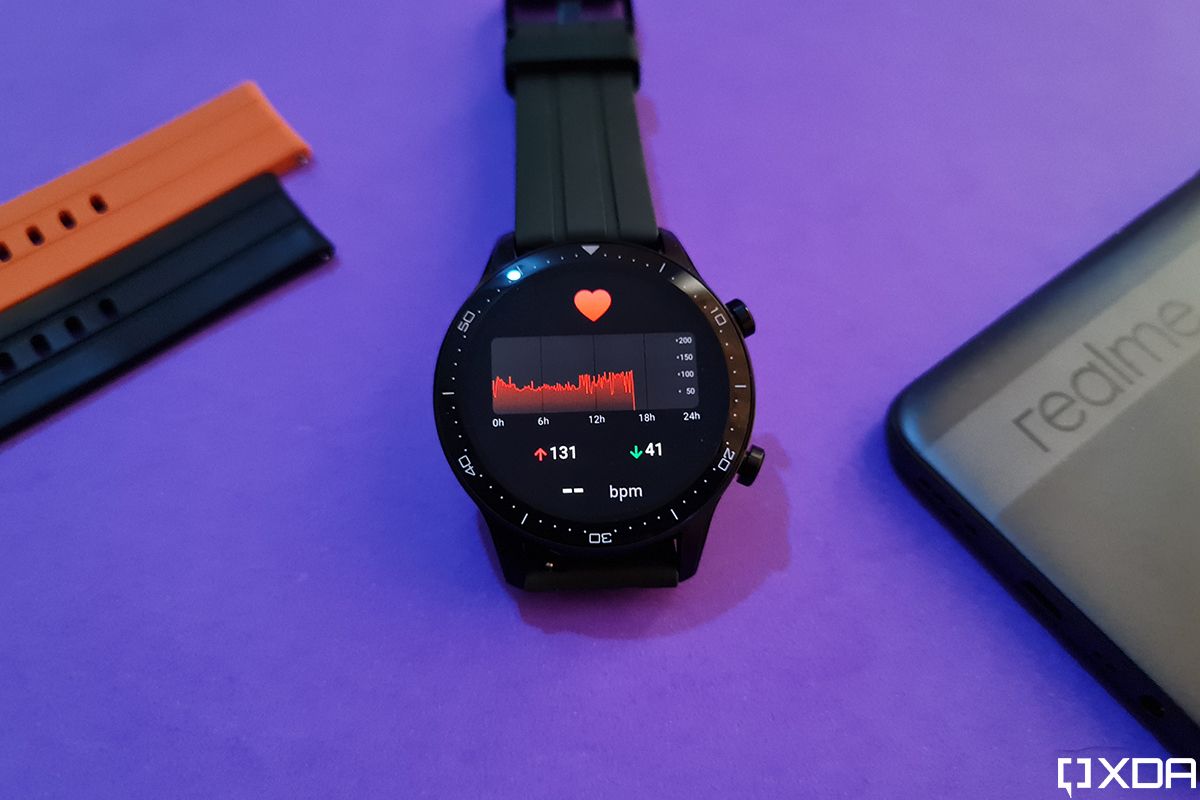
In terms of sensors, the Realme Watch S Pro features a 6-axis accelerometer, a geomagnetic sensor, a gyroscope sensor, a PPG heart rate sensor, and a wearing monitor sensor. These sensors enable features like continuous heart rate monitoring, blood oxygen monitoring (SpO2), sleep tracking, step tracking, and 15 sports modes (including a new swimming mode). Additionally, the Watch S Pro offers notification support, a sedentary reminder, a water reminder, an alarm clock and stopwatch, music playback controls, camera shutter controls, a compass, breathing exercises, and a Find My Phone feature.

You can keep a track of all the aforementioned features on the watch and the Realme Link app. On the watch, you’ll find five widgets to the right of the home screen, including activity tracking, weather, sleep tracking, heart rate monitoring, and music playback controls.

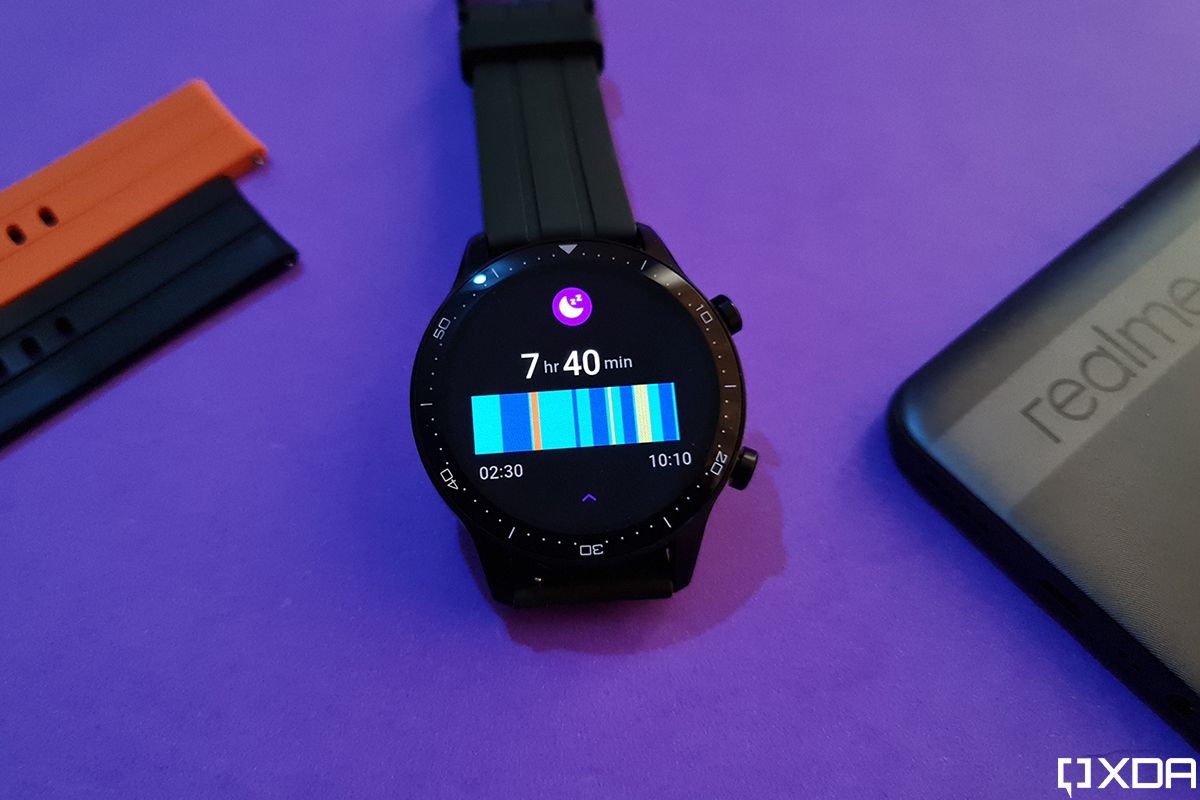
Realme Watch S Pro activity tracking widget Realme Watch S Pro sleep tracking widget Realme Watch S Pro heart rate widget Realme Watch S Pro weather widget Realme Watch S Pro music playback controls widget

As seen in the images, the widgets give you a quick overview of each of these features, and you can get more detailed info on the Realme Link app. The sleep monitoring widget is the only exception, as you can swipe up on it to see detailed information about last night’s sleep. Along with these widgets, the watch also shows you incoming notifications for apps that have been whitelisted in the Realme Link app. These notifications are displayed on the watch face as soon as they arrive, and you can view them later by pulling down the notification shade as you would on your Android device.

Realme Watch S Pro notification shade

The Watch S Pro also has a quick settings menu that you can access by swiping to the right of the home screen. It includes five quick settings tiles to enable/disable the power saving mode, flashlight, DND mode, and raise-to-wake features. The fifth tile lets you quickly adjust the display brightness.

Realme Watch S Pro quick settings tiles

You can access the rest of the features by swiping up on the home screen and opening the app drawer. Here, you’ll find the alarm clock, settings, compass, workout modes, weather, heart rate monitoring, breathing training, stopwatch/timer, SpO2 monitoring, camera shutter controls, Find My Phone, and your workout records.

Realme Watch S Pro app drawer Realme Watch S Pro always-on display

It’s worth noting that you can quickly access the workout modes by clicking the bottom button on the watch. The settings option in the app drawer includes always-on display settings, a screen off timer option, a raise-to-wake option, vibration intensity customizations, DND mode settings, and a System tab to restart, turn off, and reset the watch.

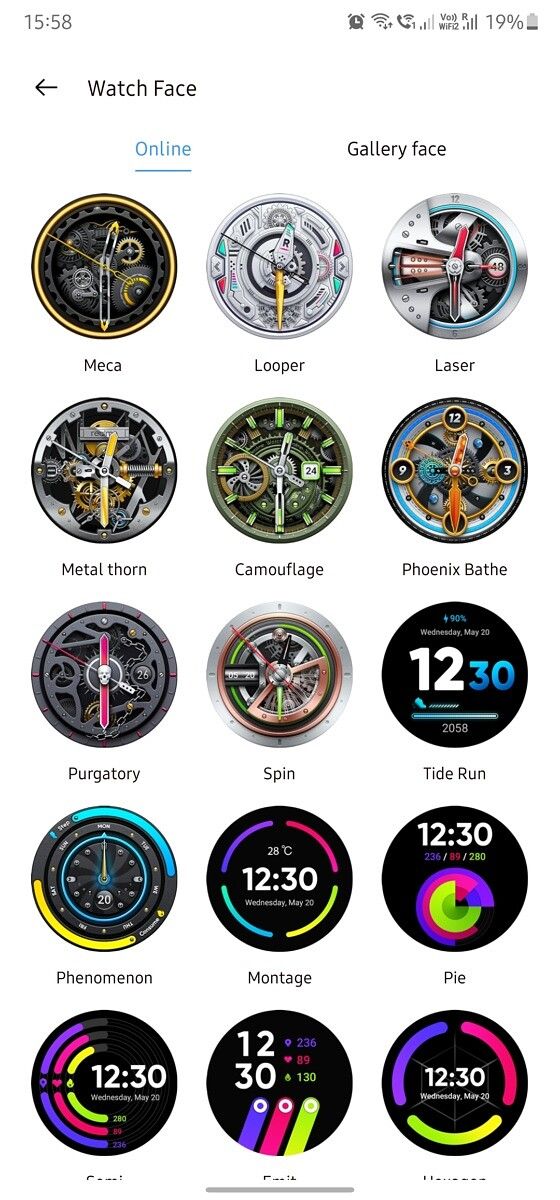
In terms of customizations, the Realme Watch S Pro comes with over 100 unique watch faces. To switch between the watch faces installed on the watch, you can tap and hold on the home screen and then swipe through all the available options.

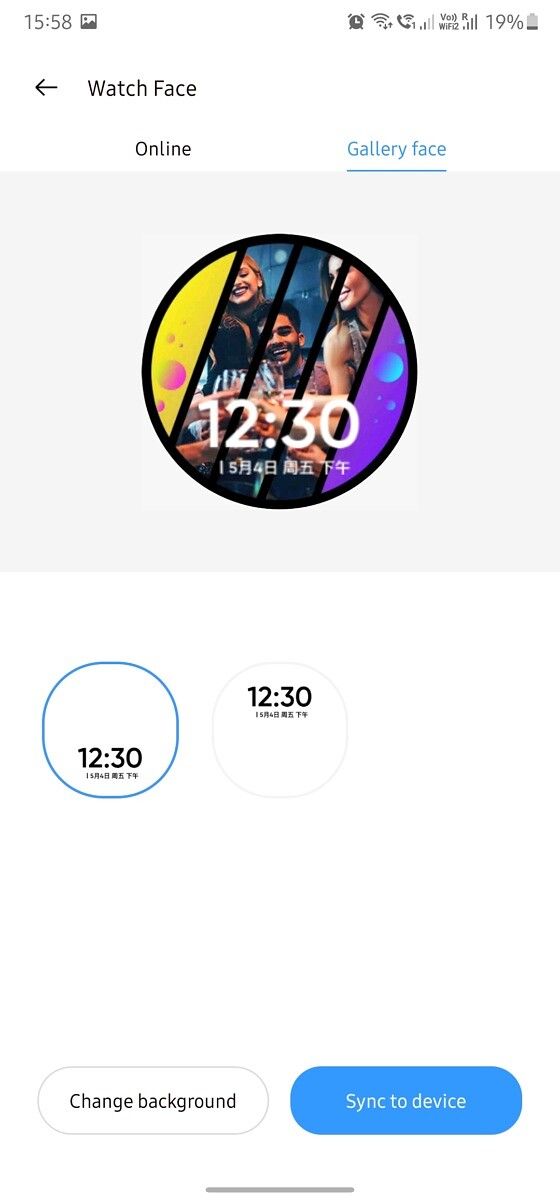
Realme Link app watch faces

In case you don’t like any of the pre-installed watch faces, you can open up the Realme Link app, and sync a new watch face to the watch. Additionally, the app gives you the option to use any image of your choice as a watch face. However, you can only select a digital watch face with a custom image.

Along with the watch face customization, the Realme Link app gives you access to all the fitness tracking data collected by the watch. It also features some additional settings to turn on/off the sedentary reminder, water reminder, music playback controls, and Find My Phone features, whitelist apps for the smart notifications feature, and set a step goal. Furthermore, it includes a handy user guide to help you figure out all of the watch’s features.

My experience with the Realme Watch S Pro

While the Realme Watch S Pro isn’t as feature-rich as the Mi Watch Revolve, it delivered a significantly better user experience. I faced absolutely no software issues with the smartwatch and I found its fitness tracking features to be more or less accurate. To check its accuracy, I used it alongside the Apple Watch Series 3 for a couple of days. And in almost all scenarios, the results delivered by the Watch S Pro didn’t deviate more than 5-7%.

For instance, during a 20-minute indoor walk session, the Realme Watch S Pro recorded 2191 steps, 1.70km covered, an average heart rate of 113 BPM, and 137 kcal burnt. The Apple Watch Series 3, on the other hand, recorded 2231 steps, 1.65 km covered, an average heart rate of 122 BPM, and 93 kcal burnt. As you can see, the number of calories burnt was the only metric that showed a larger deviation, but that’s quite acceptable given the significant price difference between the two smartwatches.

Realme Link app sleep monitoring

I wasn’t able to compare the sleep tracking performance between the two watches, as wearing both to sleep was a bit uncomfortable. But I did keep an eye on my sleep schedule over the last week, and the overall results seemed reasonably accurate. However, I did notice one inconsistency during my testing. On one particular day in the last week, I randomly woke up at around 4 AM and I couldn’t go back to sleep until 7 AM. But the watch didn’t record this instance accurately and showed that I was asleep throughout the night.

It’s worth noting that I wasn’t able to test the GPS performance of the Watch S Pro as I didn’t venture out of the house because of the current pandemic scenario. So, I can’t comment on its accuracy or its impact on battery life. My sports mode testing was also limited to indoor activities and you may get different results with outdoor activities.

My experience with the Realme Watch S Pro was completely bug-free and enjoyable. It just worked.

All of the Watch S Pro’s remaining features also worked as intended. Raise-to-wake was responsive, so I didn’t feel the need to turn on the always-on display feature, the camera shutter and music playback controls worked as you’d expect, and the SpO2 monitoring also delivered consistent results. All in all, my experience with the Realme Watch S Pro was bug-free and enjoyable.

The Realme Link app also performed quite well and, while syncing watch faces did take an awfully long amount of time, my overall experience was quite positive. The app was responsive, didn’t take too long to sync data from the watch, and displayed all the metrics in an easy to understand fashion.

Battery life & charging

Realme claims that the Watch S Pro offers 14 days of use on a single charge with continuous heart rate monitoring turned on and, in my testing, I found the claim to be more or less accurate. With a week of use, the Watch S Pro’s battery only depleted to 54% with heart rate monitoring set at 5-minute intervals, screen brightness set to level 3, always-on display turned off, no GPS use, and a daily indoor workout of 30 minutes.

Realme Watch S Pro charging cradle

This leads me to believe that the watch could easily last two weeks with a similar use case. However, if you turn on the always-on display feature and make frequent use of the watch’s GPS functionality, the battery won’t last the rated 14 days. The charging performance of the included proprietary charging cradle was satisfactory, and it managed to get the 420mAh battery from 50%-100% in about an hour.

Should you buy the Realme Watch S Pro?

If you’re in the market for a premium fitness tracker in the sub-₹10,000 price range, the Realme Watch S Pro is, in my opinion, a good buy. Although it doesn’t offer as many fitness tracking features as the similarly priced Mi Watch Revolve (review), all the features that it does offer work as intended without any unwanted bugs. On top of that, it offers IP68 dust and water-resistance rating and a better six-axis accelerometer, that you don’t get with Xiaomi’s offering.

In case you’re open to slightly older hardware, I would still recommend getting the Amazfit GTS (review) and Amazfit GTR (review) over the Realme Watch S Pro, as they offer almost as many features and you can get them for as low as ₹7,999 during sales. And if you’re willing to spend a couple of thousand bucks extra, the new Amazfit GTS 2 and Amazfit GTR 2 are significantly better options, as they offer a bunch of additional features like Amazon Alexa support, onboard music storage and playback, and more.

    Realme Watch S Pro
    The Realme Watch S Pro is a premium fitness tracker that offers a bright and vibrant display, a good selection of features, and great battery life.

The post Realme Watch S Pro Review: Realme finally got it right appeared first on xda-developers.


from xda-developers https://ift.tt/3rqEKp9
via IFTTT
Samsung Galaxy A51 5G’s One UI 3.0 beta based on Android 11 goes live in Korea

Over the past few months, Samsung has been hard at work rolling out the latest One UI 3.0 and Android 11 updates to its flagship smartphones. The company has so far rolled out stable Android 11 updates to the Galaxy S20 series, Galaxy Note 20 series, Galaxy Fold series, and more. With most of the recent Galaxy phones now on the latest version of Android and One UI, the South Koren smartphone maker has now turned its attention to the mid-range lineup. Yesterday, the company opened up a beta program for the Galaxy M31, inviting select users to get a taste of Android 11. Now one more mid-range device has joined the list: Galaxy A51.

In a post over at Samsung Community forums, Samsung has announced the launch of the One UI 3.0 beta program for the Galaxy A51 5G. Do note that the beta program is limited to the Korean model (SM-A516N) only. Interested users can participate in the program by heading over to the Samsung Members app and enrolling their device. After enrollment, the Galaxy A51 5G users should receive an OTA of One UI 3.0 beta based on Android 11. The first beta build with version number A516NKSU3ZTL9 has already gone live for registered users. Keep in mind that installing beta software will wipe your data, so make sure to take a full backup beforehand.

Samsung Galalxy A51 5G XDA Forums

The Galaxy A51 5G is the first in the Galaxy A series to receive a One UI 3.0 beta. We don’t know when Samsung plans to extend the beta program to other regions. According to Samsung’s One UI 3.0 update roadmap, the Galaxy A51 5G is slated to receive the stable Android 11 update in Q1 2021 in certain regions. However, seeing how the Galaxy S20 FE received its stable update ahead of the schedule, it’s entirely possible the Galaxy A51 5G owners may receive the final version well before the planned date.

The post Samsung Galaxy A51 5G’s One UI 3.0 beta based on Android 11 goes live in Korea appeared first on xda-developers.


from xda-developers https://ift.tt/3pmWM9T
via IFTTT